
Hello friends! We are excited to announce that Ant Media Server Enterprise is now available on the Google Cloud Marketplace! This is a fantastic development that combines the powerful features of Ant Media Server with the capabilities offered by Google Cloud, taking your live streaming experience to the next level.
Deploying through Google Cloud Marketplace simplifies provisioning, billing, and infrastructure configuration. Instead of manually setting up virtual machines and installing dependencies, you can launch a pre-configured Ant Media Server Enterprise instance with just a few steps.
This guide explains how to install Ant Media Server Enterprise from Google Cloud Marketplace and highlights important configuration considerations, including firewall settings required for WebRTC.
How to Install Ant Media Server from Google Cloud Marketplace?
To install Ant Media Server Enterprise on the Google Cloud Platform, follow these steps:
- Log in to the Google Cloud Console: Go to the Google Cloud Console and sign in with your Google account.
- Select or create a project: If you have an existing project, select it. If not, click the Create Project button to create one.
- Access the Google Cloud Marketplace: Select “Marketplace” from the menu located in the upper left corner.
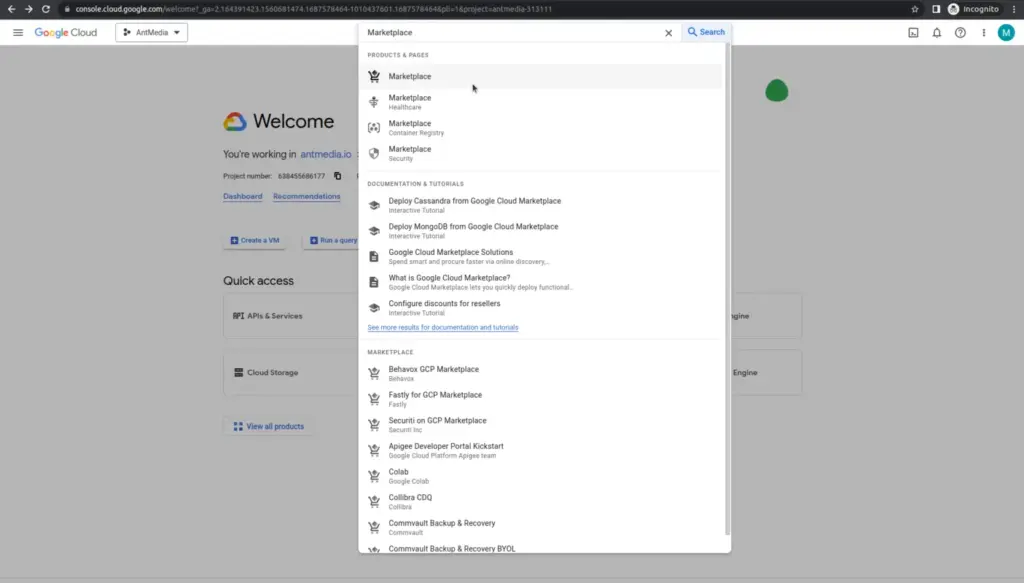
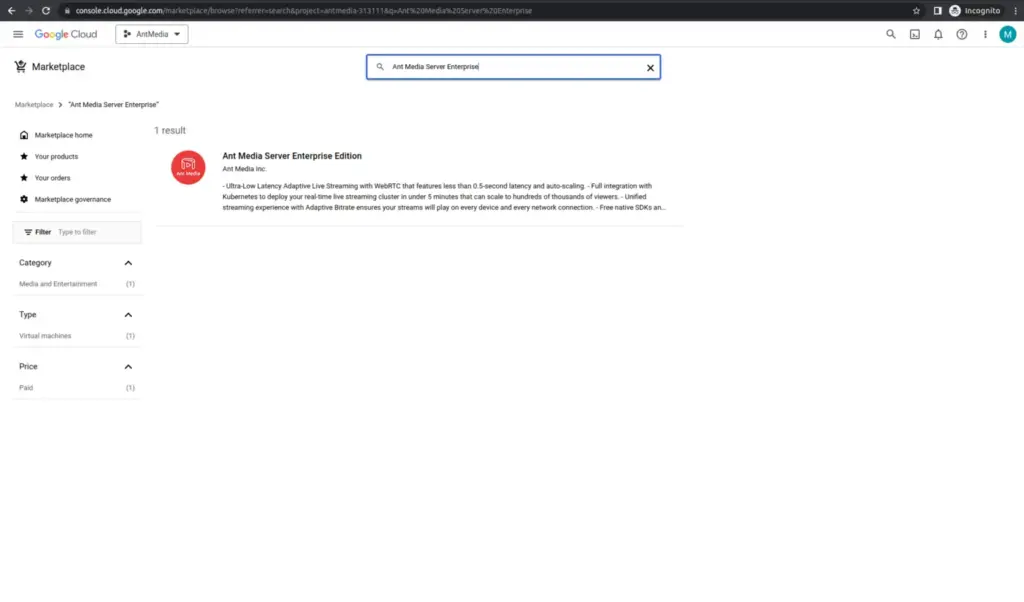
- Find Ant Media Server Enterprise: In the Marketplace search bar, type “Ant Media Server Enterprise.” Find it in the search results and click on it.
- Choose deployment configuration: On the Ant Media Server Enterprise page, select the deployment configuration. For example, specify the desired CPU and memory allocation.
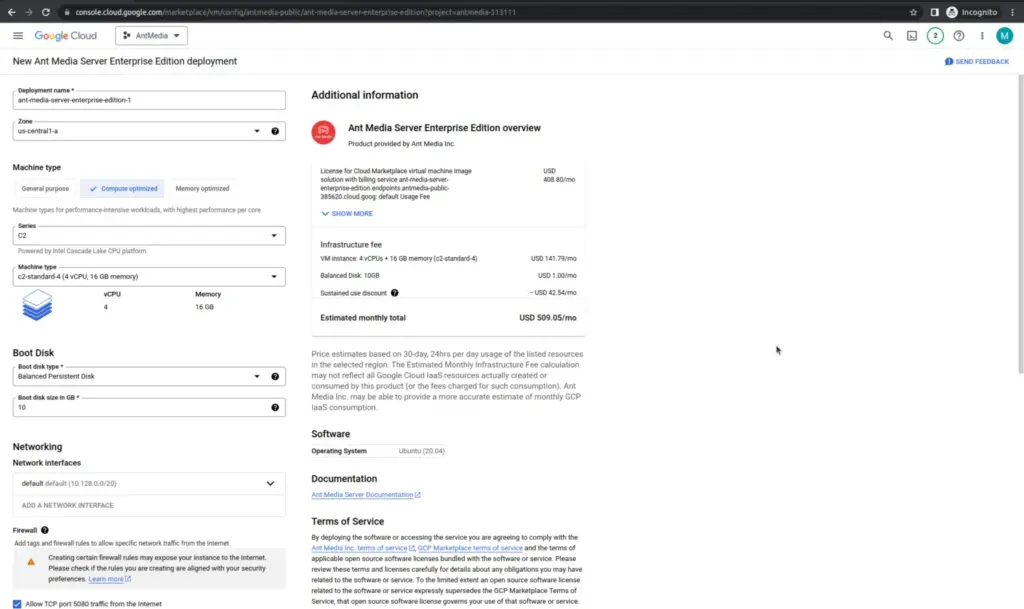
Note: WebRTC is not functional since GCP does not by default permit adding a UDP port range to the image security group. You must enable UDP port range 50000-60000 in security group for WebRTC to function.
- Start the installation: Click the “Launch” button to start the installation process. The process may take a few minutes.
- Wait for the installation to complete: Wait until the installation process is complete. Once finished, your Ant Media Server Enterprise will be ready to use.
By following these steps, you can quickly install Ant Media Server Enterprise on the Google Cloud Platform. You are now ready to offer powerful live streaming services using the capabilities provided by Google Cloud!
Launch Ant Media Server on Google Cloud!
After Deployment
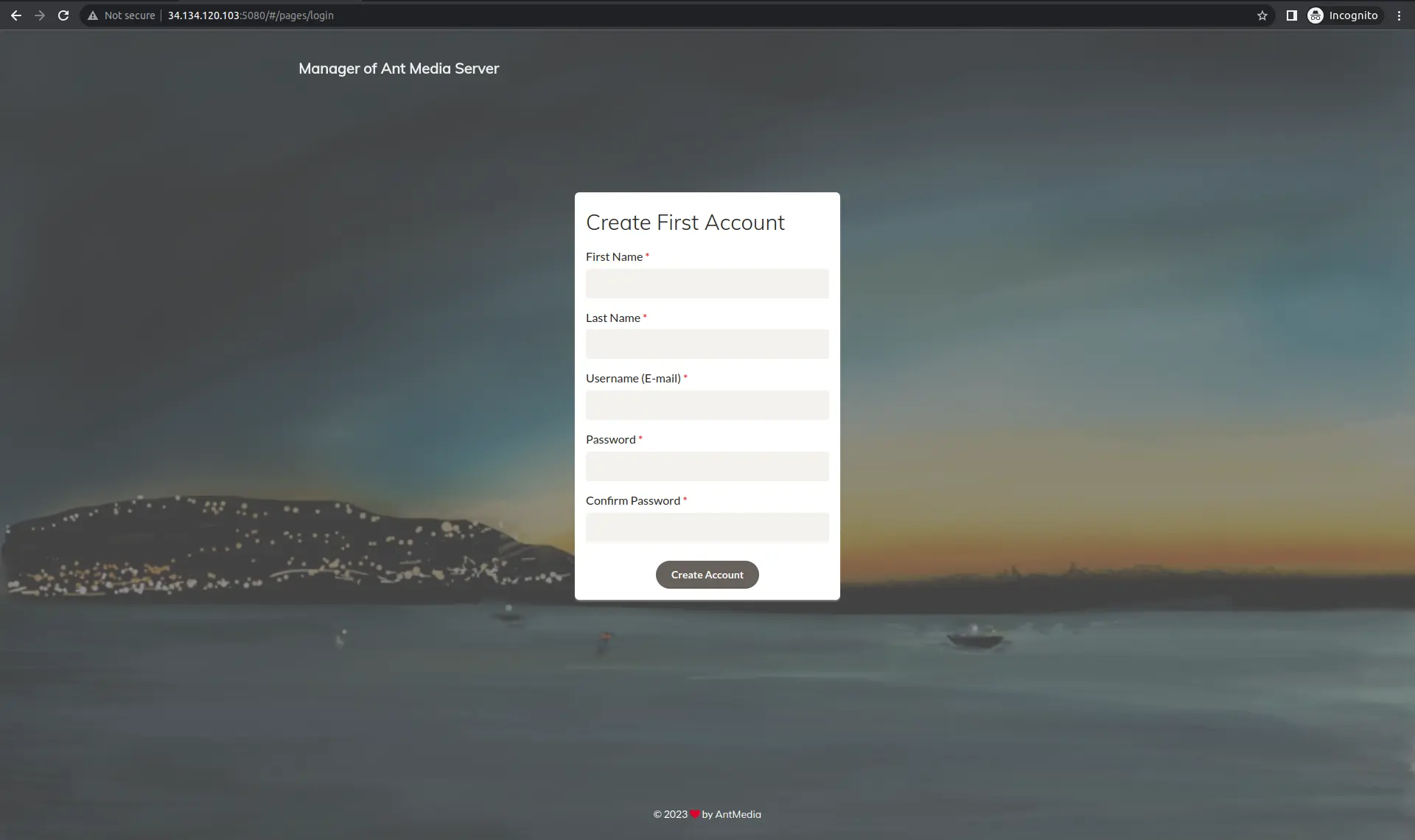
Once the deployment is complete, you can access Ant Media Server using the public IP address of your virtual machine.
Access the Web Panel
Open your browser and navigate to:
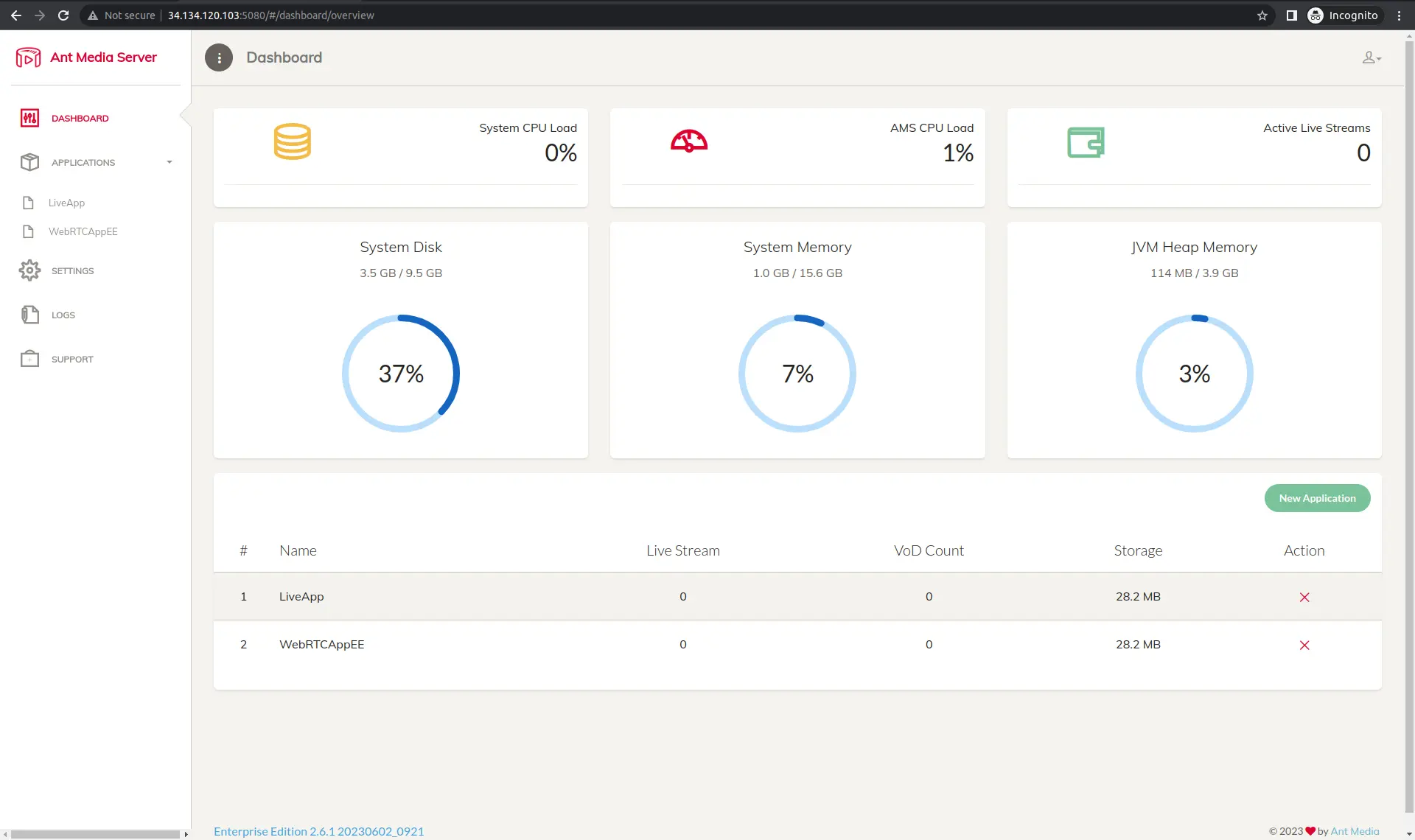
http://<YOUR_VM_PUBLIC_IP>:5080Log in to the Ant Media Server web management panel to:
- Create applications
- Start publishing streams
- Configure WebRTC, HLS, or DASH settings
- Monitor server metrics
Verify WebRTC Configuration
If you plan to use WebRTC:
- Confirm that UDP ports 50000–60000 are allowed in your GCP firewall rules
- Test publishing and playback using the sample WebRTC application
If WebRTC is not functioning, verify firewall settings before troubleshooting further.
Scale and Optimize
Depending on your streaming workload, you may:
- Upgrade the VM instance type
- Deploy additional nodes for clustering
- Use a CDN for HLS delivery
- Enable autoscaling using GCP infrastructure
Frequently Asked Questions
Does Google Cloud Marketplace automatically configure WebRTC ports?
Can I use HTTPS with Ant Media Server on Google Cloud?
How do I scale Ant Media Server on Google Cloud?
Is Ant Media Server billed separately from Google Cloud resources?
Can I use HLS without configuring UDP ports?
Conclusion
Deploying Ant Media Enterprise Edition through the Google Cloud Marketplace simplifies infrastructure setup while leveraging the scalability and reliability of Google Cloud Platform. With a few configuration steps, you can launch a production-ready streaming server without manual installation or complex provisioning.
Proper network configuration—especially enabling the required UDP port range for WebRTC—is essential to ensure full functionality. Once deployed, Ant Media Server can be scaled vertically or horizontally depending on streaming demand, and integrated with additional cloud services for performance and security.
By combining Ant Media Server’s real-time streaming capabilities with Google Cloud’s infrastructure, organizations can build scalable, low-latency streaming applications with predictable deployment workflows and centralized billing management.
Explore the documentation or join the community discussions to learn more about the Ant Media Server.
Demos of Ant Media Server are available on the website and you can check out some of the popular SDKs in GitHub to integrate Ant Media Server into your mobile application.
Deployment options include other 1-click apps, cloud marketplaces, Docker/Kubernetes/Scripts on various cloud providers such as AWS, Microsoft Azure, Digital Ocean, Linode, and Alibaba.
A free trial is available to try out the Enterprise Edition of the product and support packages are available for both editions if you need some extra help getting started.