Before Starting:
 You see, your controller is ready for the action! Now, it’s time to configure the host.
The host application has several settings such as:
You see, your controller is ready for the action! Now, it’s time to configure the host.
The host application has several settings such as:
 You can customize TunaDesk for your specific usage by enabling or disabling these settings.
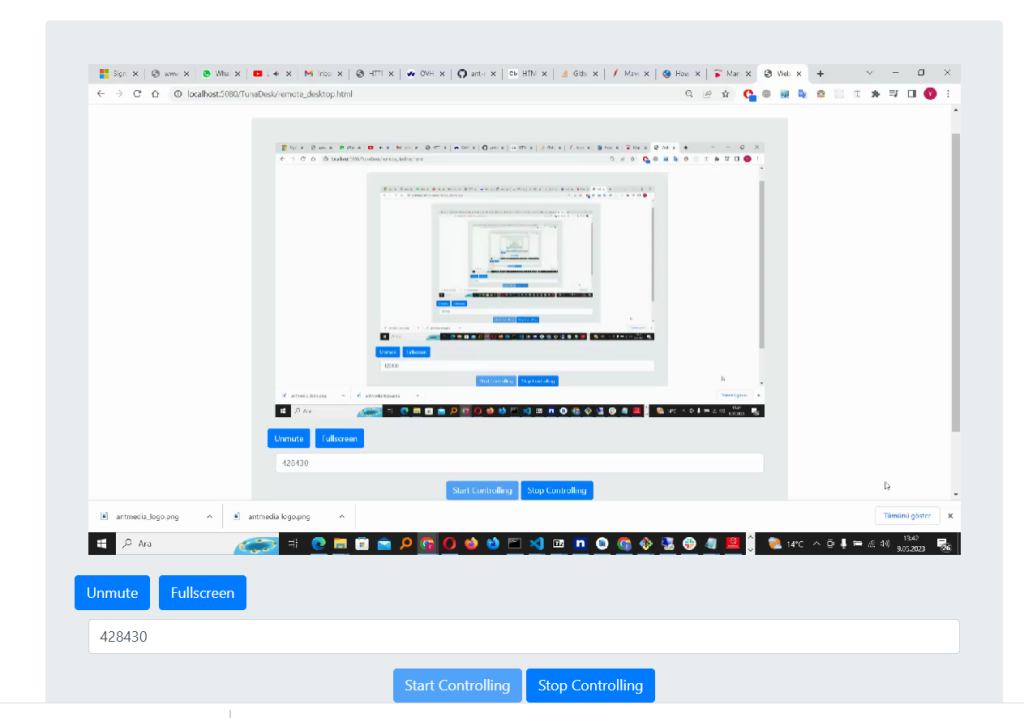 And that’s it!
Your session should begin and you should be able to securely control the host from your web browser.
Optionally, you can mute the session or switch to fullscreen for a better experience.
And that’s it!
Your session should begin and you should be able to securely control the host from your web browser.
Optionally, you can mute the session or switch to fullscreen for a better experience.
You need to have an active Ant Media Server(AMS) license. You can subscribe through AWS and deploy AMS with just one click. Or directly subscribe to self-hosted license on our website.
Deploying:
- Download the latest war file of TunaDesk.
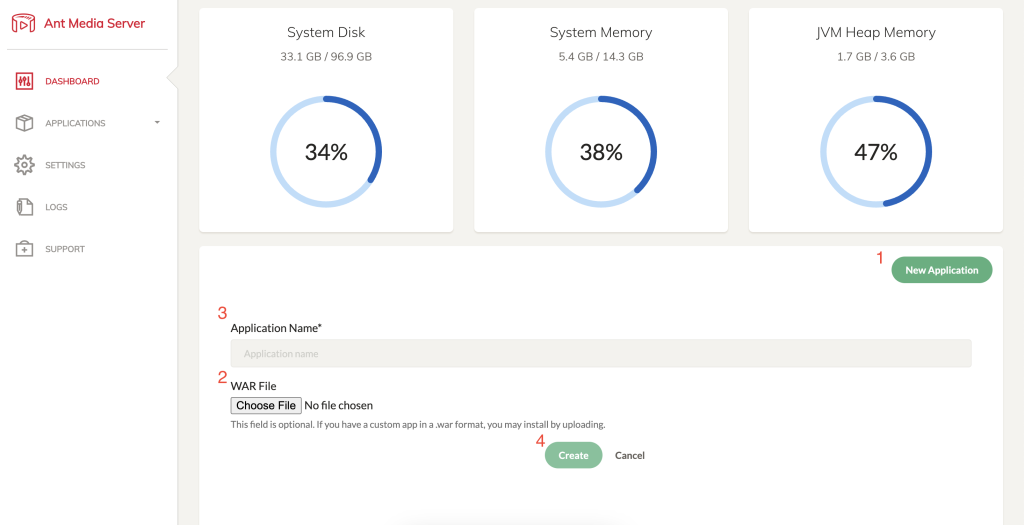
- Login to your Ant Media Server management panel.
- At the panel, click the “New Application” button.
- Simply, click the “Choose File” button and browse the war file you downloaded. Hit the upload button.
- Name the application.
- Hit, Create button. And, that’s all. That simple.
Using:
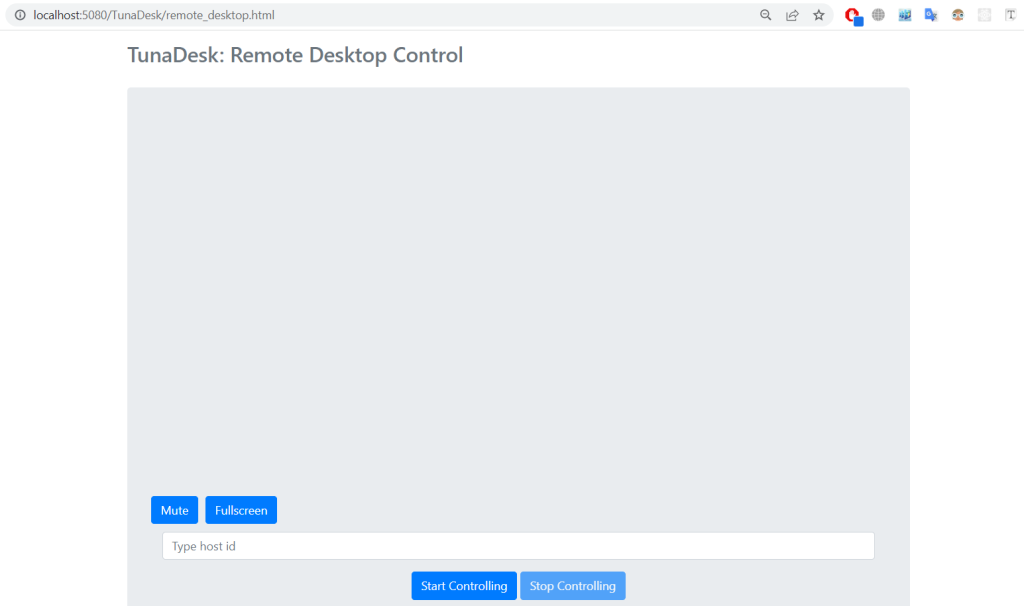
Visit:https://{YOUR_ANT_MEDIA_SERVER}:5443/TunaDesk/remote_desktop.html
You see, your controller is ready for the action! Now, it’s time to configure the host.
Host
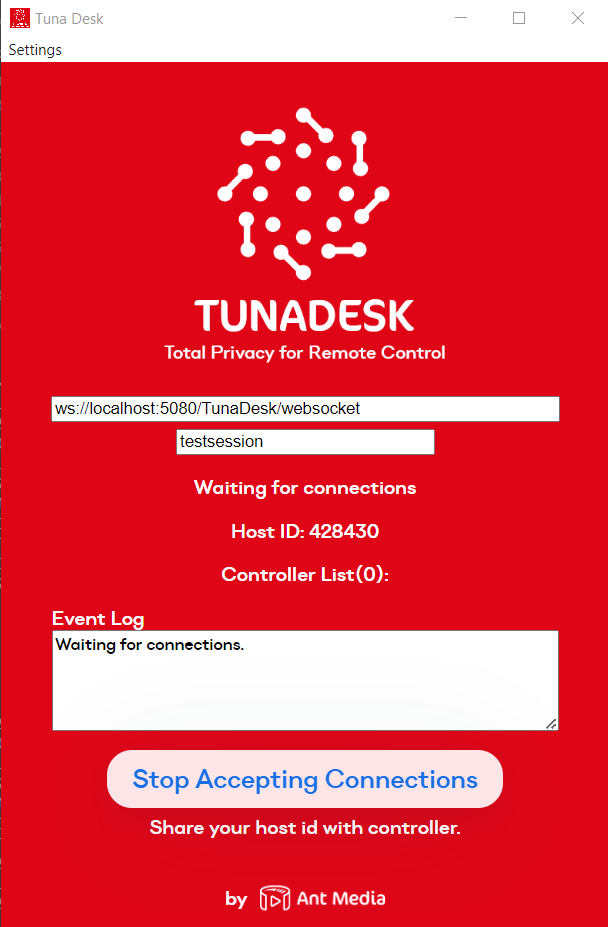
The host is the computer that you want to control. Download the TunaDesk Setup for Windows from this link. Or alternatively, download the unpackaged version for Windows from this link. If you prefer, you can also compile it from the source for your desired operating system by following the instructions in the repository.- Launch TunaDesk in administrator mode to grant screen-sharing permission.
- Click the Start Accepting Connections Button and share your host ID with the controller.
- The controller accepts the host ID in their web browser to begin controlling the host.
Several controllers can connect to the same host and can either observe the session or take full control of it.
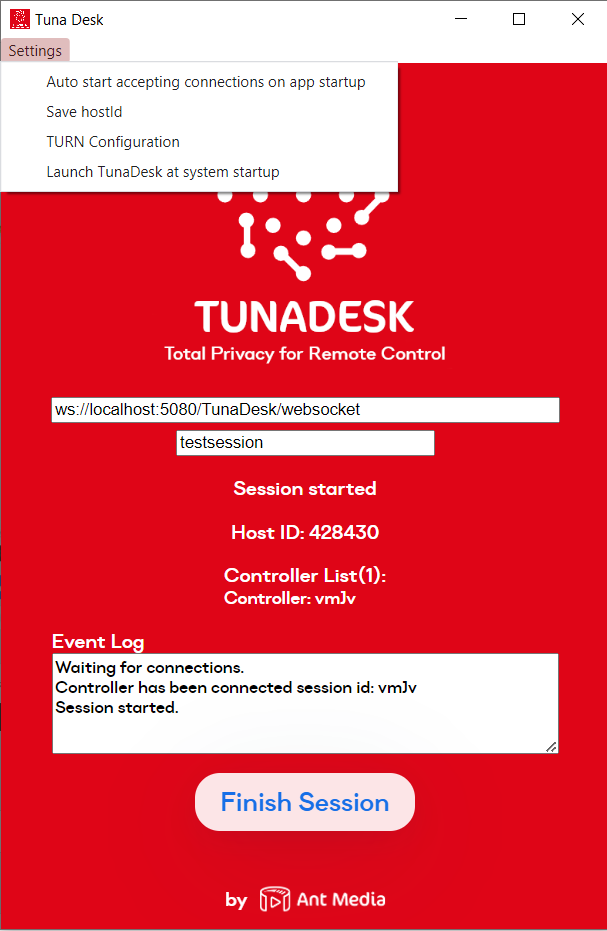
- Auto start connections on app startup.
- Save hostId.
- TURN configuration.
- Launch TunaDesk at system startup.
You can customize TunaDesk for your specific usage by enabling or disabling these settings.
Start a Control Session
All you need to do is go back to your controller web page located here: https://{YOUR_ANT_MEDIA_SERVER}:5443/TunaDesk/remote_desktop.html
Type hostId into the box and click the Start Controlling button.
And that’s it!
Your session should begin and you should be able to securely control the host from your web browser.
Optionally, you can mute the session or switch to fullscreen for a better experience.