Monetize Every Live Stream. Seamlessly.
No ad breaks missed. No playback interruptions. No complex integrations.
Scotty detects SCTE-35 ad markers in your live streams, injects HLS signalling tags in real time, and powers both server-side (SSAI) and client-side (SGAI) ad insertion — so you can monetize every broadcast without breaking the viewing experience.

1. Install the Plugin
SSH into your Ant Media server and run the following as root or with sudo:
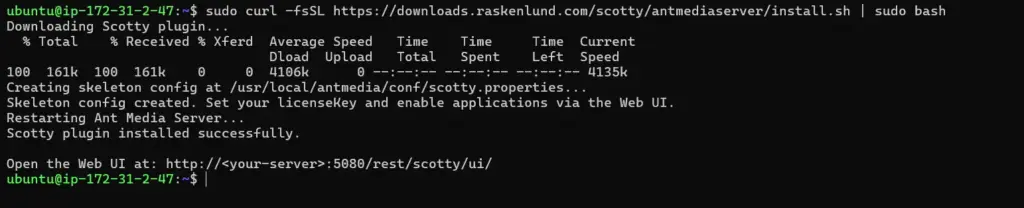
curl -fsSL https://downloads.raskenlund.com/scotty/antmediaserver/install.sh | sudo bash
The script automatically handles:
- Downloads
Scotty-1.0.0.jarto the Ant Media plugins directory - Sets correct file ownership
- Creates config skeleton at
/usr/local/antmedia/conf/scotty.properties - Restarts the antmedia service
Installation Output
2. Verify the JAR is in Place
After the script completes, confirm the plugin file was installed:
ls -la /usr/local/antmedia/plugins/ | grep -i scotty
Expected output:
-rw-r--r-- 1 antmedia antmedia 165158 Mar 30 05:25 Scotty-1.0.0.jar

3. Log into Ant Media on Port 5080
NOTE: The Scotty Web UI requires a valid session cookie from port 5080. Log in here first, even if you normally use an SSL domain.
Open your browser and navigate to:
http://<your-server-ip>:5080
Log in with your Ant Media Server admin credentials to establish the session cookie that Scotty requires.
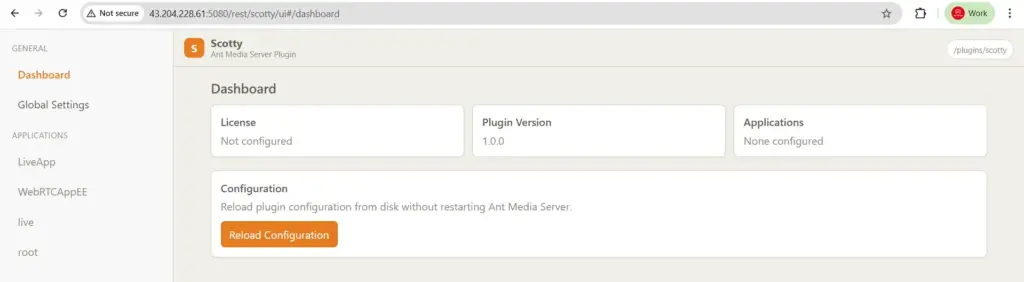
4. Open the Scotty Dashboard
Navigate to:
http://<your-server-ip>:5080/rest/scotty/ui/
The browser session carries over automatically, bypassing any 403 authentication errors.
Scotty Dashboard
5. Enter Your License Key
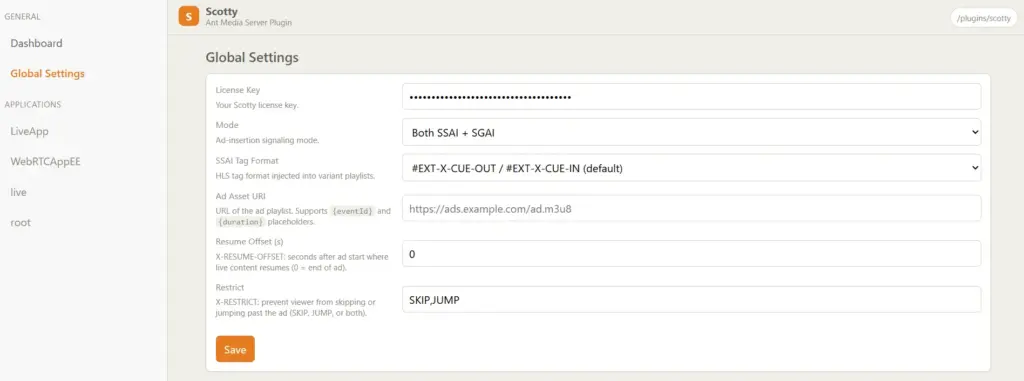
In the Scotty Web UI:
- Click Global Settings in the left sidebar
- Enter your Scotty license key
- Set Mode to both (enables SSAI and SGAI simultaneously)
- Set SSAI Tag Format to
#EXT-X-CUE-OUT / #EXT-X-CUE-IN - Click Save
Global Settings
6. Enable Scotty for Your Application
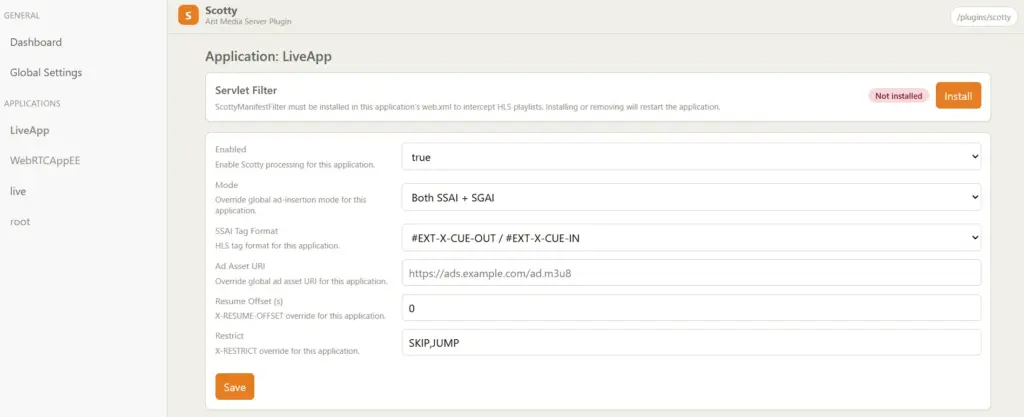
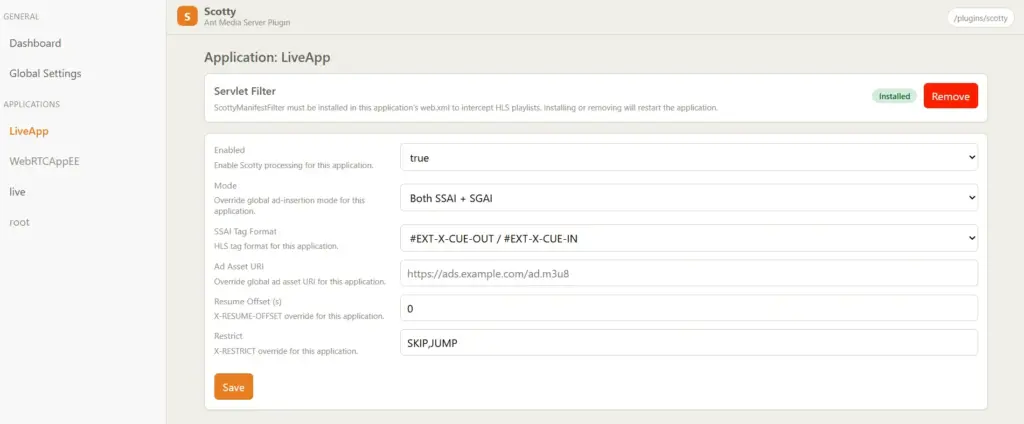
Scotty only activates on applications you explicitly configure. For example, using LiveApp:
- In the left sidebar, click live under APPLICATIONS
- Set Enabled to
true - Set Mode to Both SSAI + SGAI
- Set SSAI Tag Format to
#EXT-X-CUE-OUT / #EXT-X-CUE-IN - Click Save
Application Settings
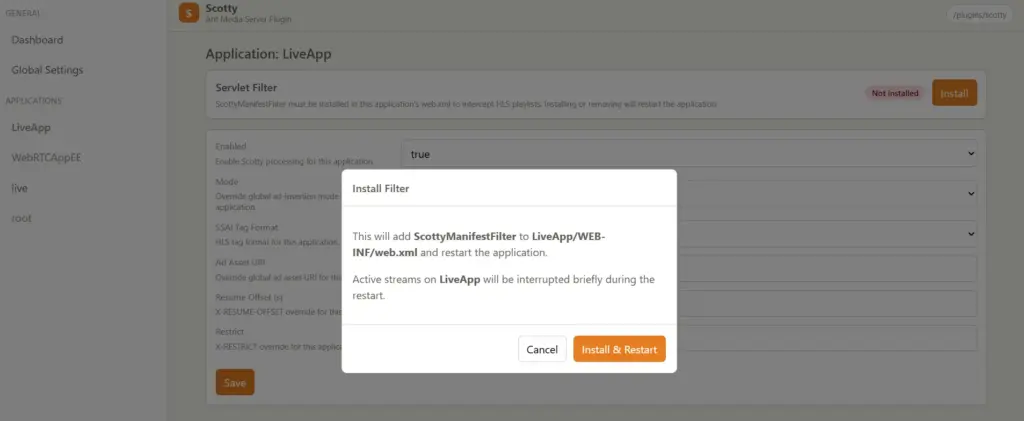
7. Install the Servlet Filter
The servlet filter is required for Scotty to intercept and modify HLS playlists:
- Scroll to the Servlet Filter section
- Click Install > Install & Restart
- Wait a few seconds for the application to restart
- Confirm the Servlet Filter status shows Installed
NOTE: The application will be briefly unavailable during the filter installation restart. This is normal.
Initiate Servlet Install
Servlet Installed
8. Restart Ant Media and Verify
Restart Ant Media to ensure all settings are fully applied:
sudo systemctl restart antmedia
Check the log to confirm Scotty initialized correctly:
grep -i scotty /usr/local/antmedia/log/ant-media-server.log | tail -20
Expected output:
[Loader:/live] INFO io.antmedia.plugin.Scotty - Scotty: v1.0.0 initializing for application 'LiveApp'
[Loader:/live] INFO io.ztream.scotty.c - Loaded Scotty settings: 6 global properties, 2 application(s) configured
[pool-8-thread-1] INFO io.ztream.scotty.a - Scotty: License validated successfully
[Loader:/live] INFO io.antmedia.plugin.Scotty - Scotty: ScottyManifestFilter is properly registered
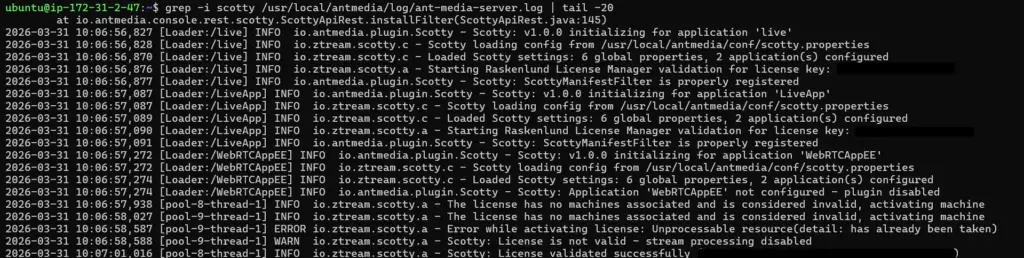
License Verified
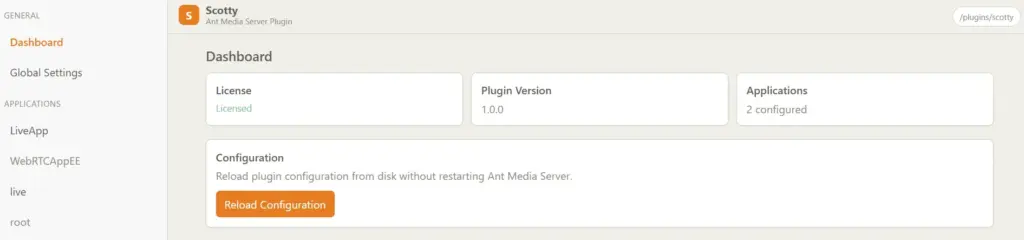
9. Application Settings — Field Reference
Quick reference for every field on the Application settings page:
10. Verify SCTE-35 Ad Insertion
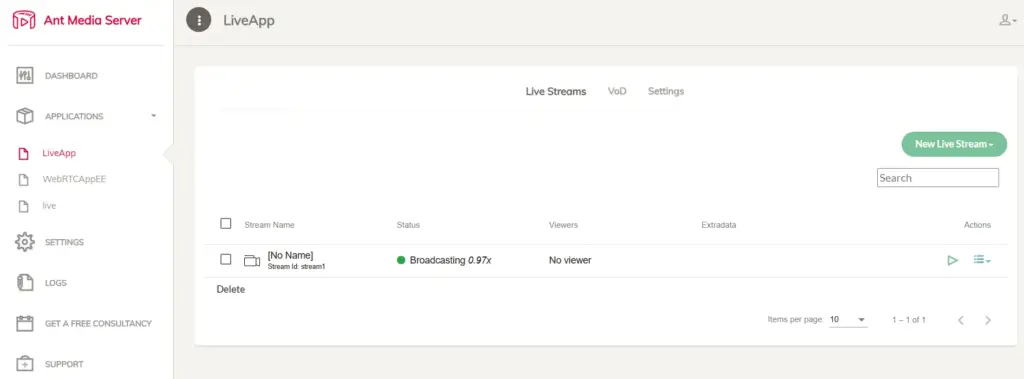
Stream a pre-built SCTE-35 test file via SRT and inspect the HLS playlist to confirm Scotty is injecting tags correctly.
Install dependencies:
which srt-live-transmit
sudo apt install srt-tools pv -y
Stream the SCTE-35 test file:
cat ~/scte35_test.ts | pv -L 19K | srt-live-transmit file://con "srt://<your-server-ip>:4200?streamid=LiveApp/stream1"
NOTE: Replace <your-server-ip> with your Ant Media server IP. Ensure port 4200 is open. The test file (2-hour demo with cues every ~2 minutes) is available via the Google Drive link in your Scotty license documentation.
SRT Receiving
Poll the playlist after ~2 minutes:
curl http://<your-server-ip>:5080/LiveApp/streams/stream1.m3u8
Expected playlist with injected ad break tags:
#EXTM3U
#EXT-X-VERSION:3
#EXT-X-TARGETDURATION:2
#EXT-X-MEDIA-SEQUENCE:220
#EXT-X-CUE-OUT-CONT:Elapsed=28.000,Duration=60.000
#EXTINF:2.000000,
#EXT-X-PROGRAM-DATE-TIME:2026-03-31T07:00:06.119+0000
stream1000000220.ts
#EXT-X-CUE-OUT-CONT:Elapsed=30.000,Duration=60.000
#EXTINF:2.000000,
stream1000000221.ts
✔ Success: The #EXT-X-CUE-OUT-CONT tags confirm Scotty detected the SCTE-35 splice insert and is annotating the HLS playlist in real time. Duration=60.000 signals a 60-second ad break window.
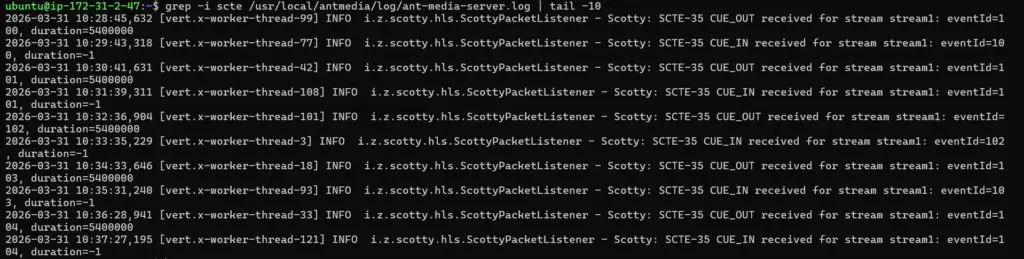
Confirm in the server log:
grep -i scte /usr/local/antmedia/log/ant-media-server.log | tail -10
SCTE-35 Verification
11. Hot Reload Configuration
Scotty supports hot-reload — change settings without interrupting live streams:
- Edit settings in the Web UI and click Save
- Go to the Dashboard and click Reload Configuration
- Active streams keep current config; new streams use updated settings
NOTE: If you use streamNameTemplates (regex-based overrides), they apply only when a stream starts. Restart running streams after reload if needed.
12. Uninstall Scotty
To completely remove Scotty from your Ant Media Server:
# Remove the plugin JAR
sudo rm /usr/local/antmedia/plugins/Scotty-1.0.0.jar

# Optionally remove the config file
sudo rm /usr/local/antmedia/conf/scotty.properties

# Restart Ant Media
sudo systemctl restart antmedia
Ant Media will restart cleanly without loading the plugin. To reinstall later, run the install script again.