
Ant Media provides a Unity WebRTC SDK built on top of the WebRTC for Unity packages developed by the Unity team. This SDK enables developers to publish and play ultra-low-latency WebRTC streams directly from Unity applications using Ant Media Server.
The SDK is distributed as a GitHub project and includes a sample Unity application that demonstrates publishing, playback, and peer-to-peer streaming scenarios. It is designed for developers who want direct access to the source code and greater control over integration.
This guide walks through setting up the Unity WebRTC SDK project, configuring Ant Media Server connectivity, building the application for multiple platforms, and running the included sample application.
Table of Contents
Setup The Project
This section explains how to download, open, and configure the Unity WebRTC SDK project.
Clone the SDK Repository
Clone the Unity WebRTC SDK from the official GitHub repository:
git clone https://github.com/ant-media/WebRTC-Unity-SDK.gitOpen the Project in Unity
- Launch Unity Hub.
- Click Open and select the folder where you cloned the repository.
- Wait for Unity to import and open the project.
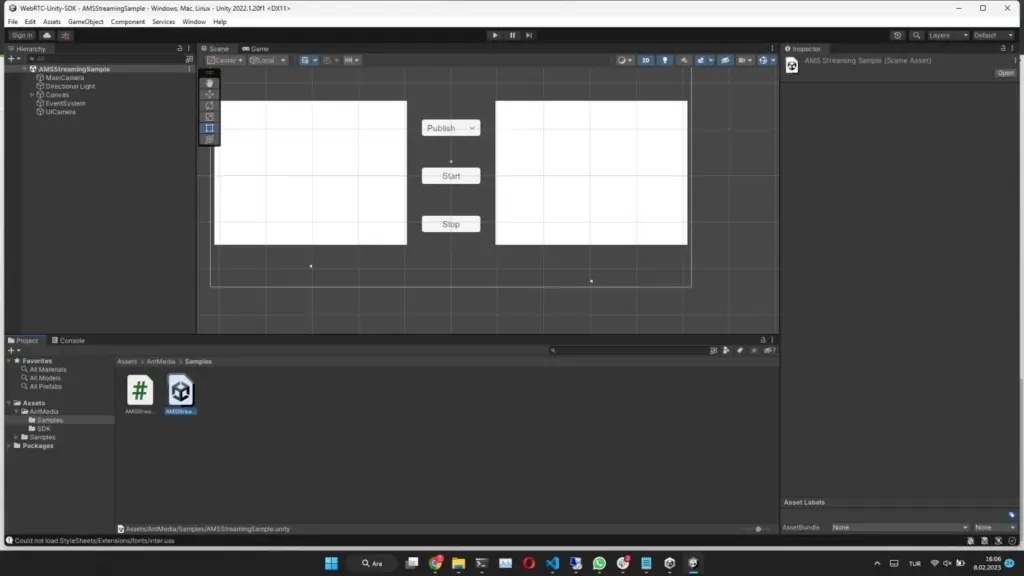
Open the Sample Scene
- In the Project window, navigate to:
Assets/AntMedia/Samples - Open the AMSStreamingSample scene.
Configure Ant Media Server Settings
In the same directory, open the script AMSStreamingSamples.cs and update the WebSocket URL to match your Ant Media Server configuration:
string websocketUrl = "ws://localhost:5080/LiveApp/websocket";Note: Use wss:// and port 5443 if SSL is enabled on Ant Media Server.
Set the stream ID by passing it as the first parameter to the WebRTCClient constructor. This stream ID will be used for publishing and playback in the sample application.
Build The Project
Unity projects can be built for multiple platforms. This section covers building the Unity WebRTC SDK sample application for Windows and Android.
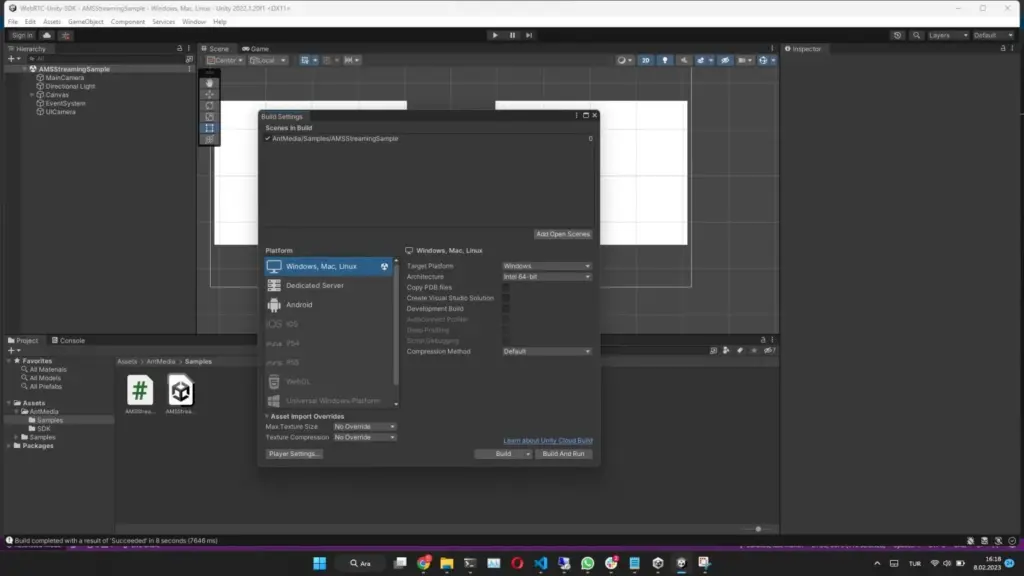
Windows Build
- Navigate to File → Build Settings
- Select Windows as the platform
- Click Build and select the folder where you want to create the executable file
Android Build
- Navigate to File → Build Settings
- Select Android as the platform and click Switch Platform
- Click Player Settings
- Expand Publisher Settings
- Create a Keystore via Keystore Manager
- Select the created keystore as Custom Keystore and set the password
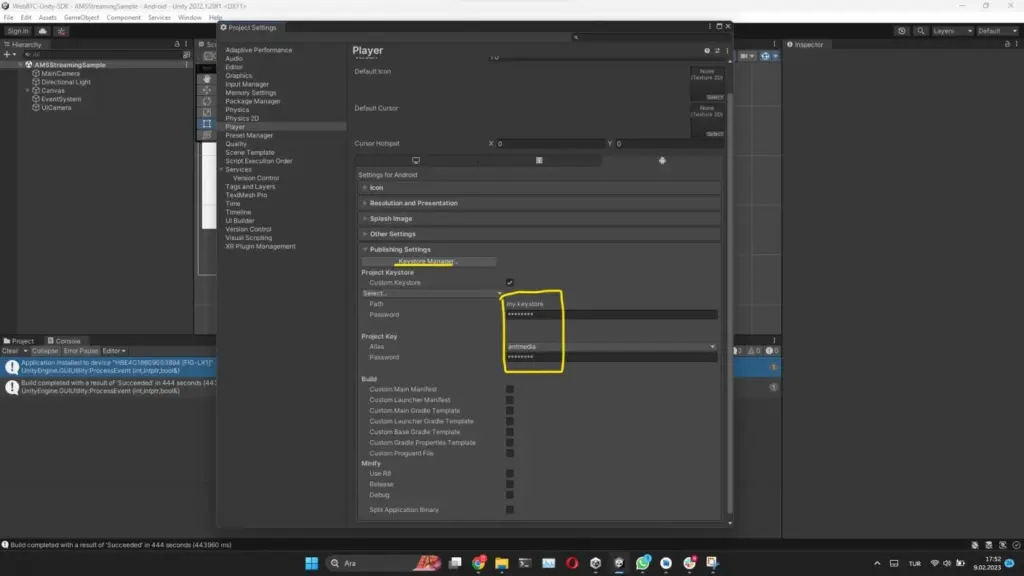
- Expand Other Settings:
- Set Scripting Backend to IL2CPP
- Check ARM64 checkbox
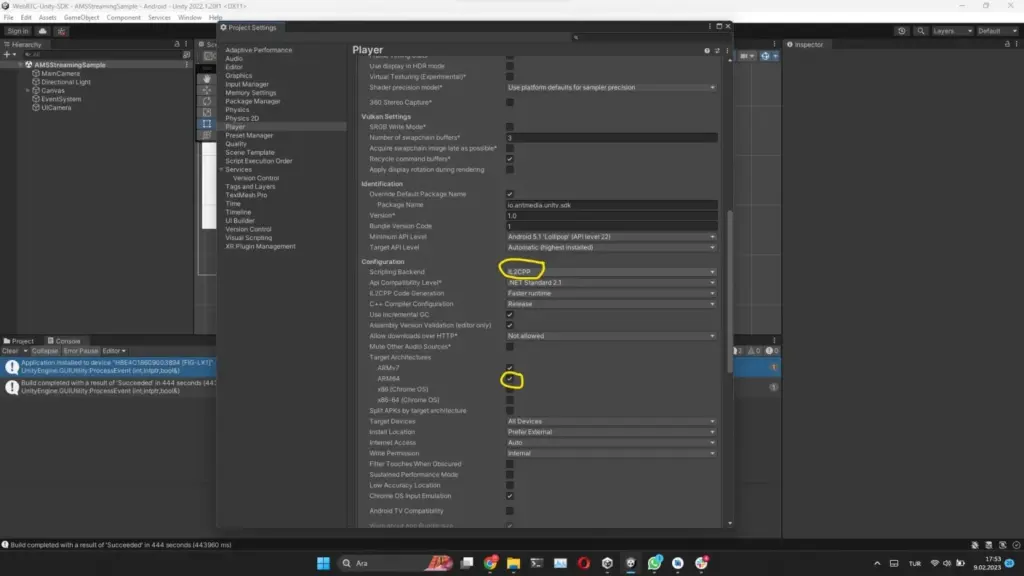
- Go back to the Build window:
- Choose the device you want to install and run the application on
- Check Development Build
- Click Build and Run and select the folder for the APK file
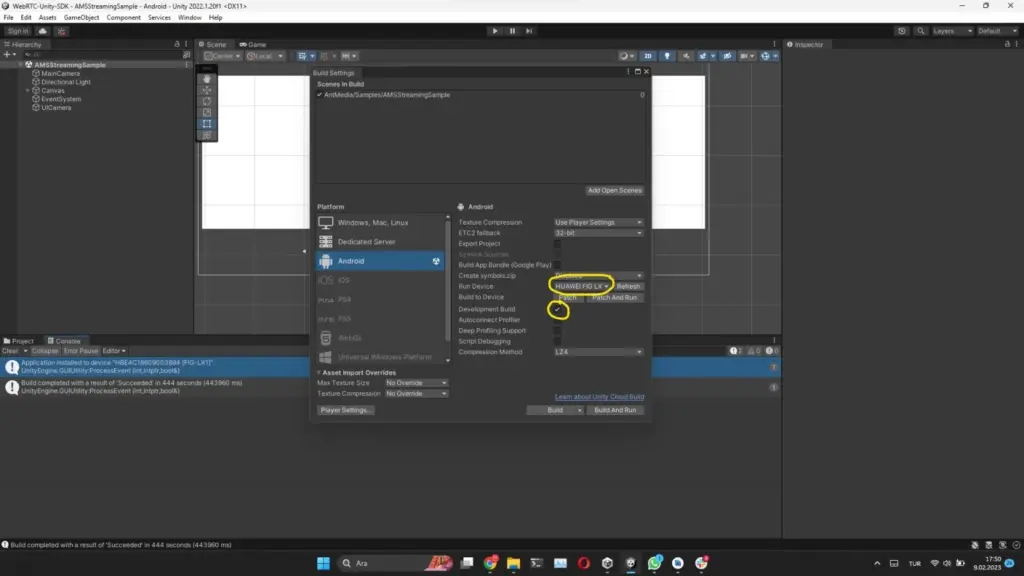
Run The Project
After building and running the Unity WebRTC SDK sample application, the main sample interface will be displayed. The sample application supports three different modes, which can be selected from the dropdown menu. Each mode demonstrates a different WebRTC streaming scenario.
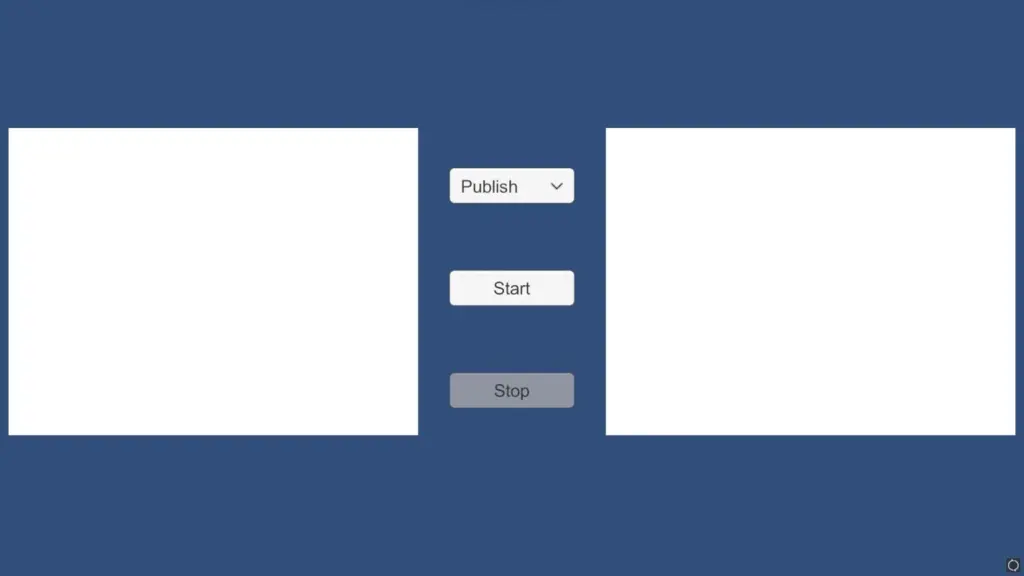
Publish Mode
In Publish Mode, the sample application captures video from the local camera and publishes it to Ant Media Server as a WebRTC stream.
- The local camera preview is displayed in the first player
- The stream is published using the stream ID configured in the SDK
You can watch the published stream using the Ant Media Server WebRTC player:
https://{AMS_URL}:5443/WebRTCAppEE/play.html?streamId={STREAM_ID_YOU_SET}Play Mode
In Play Mode, the sample application plays an existing WebRTC stream from Ant Media Server. To use this mode:
- Create or publish a stream on Ant Media Server using the same stream ID configured in the SDK
- Select Play Mode in the sample application
- Click Start
The stream will be rendered in the second player.
Peer Mode
In Peer Mode, the sample application both publishes and plays WebRTC streams simultaneously.
- The local camera stream appears in the first player
- The application waits for a second peer to join
To add another peer, open the following URL in a browser:
https://{AMS_URL}:5443/WebRTCAppEE/peer.htmlEnter the same stream ID used in the sample application. Once connected, the second peer’s stream will appear in the second player.
Codec Note
The sample application currently uses the VP8 codec. Make sure that Ant Media Server is configured to support VP8 before testing the sample application.
Frequently Asked Questions
What is the difference between this Unity WebRTC SDK and the Unity SDK package?
This Unity WebRTC SDK is a GitHub-based project built on top of Unity’s official WebRTC packages. It provides direct source-level access, sample scenes, and integration logic tailored for Ant Media Server, making it suitable for developers who want more control and customization.
Which streaming protocol does this Unity SDK use?
The SDK uses WebRTC for publishing and playback, enabling ultra-low-latency audio and video streaming when connected to Ant Media Server. For developers new to WebRTC streaming protocol fundamentals, understanding peer connection architecture, signaling mechanisms, and ICE candidate negotiation provides essential context for implementing real-time communication features in Unity applications.
Do I need SSL to run the Unity WebRTC sample application?
SSL is required when using secure WebSocket (wss) connections, which are recommended for WebRTC. When SSL is enabled on Ant Media Server, the signaling URL should use wss on port 5443. Production deployments behind firewalls or NAT configurations require proper STUN/TURN server configuration requirements to enable ICE candidate gathering and peer connectivity traversal across restrictive network environments where direct UDP communication may be blocked by enterprise security policies.
What codecs are supported by the sample application?
The sample application currently uses the VP8 video codec. Ensure that Ant Media Server is configured to support VP8 before testing the application. Understanding codec selection and encoding parameters helps developers optimize bitrate allocation, compression efficiency, and quality-latency tradeoffs when implementing production streaming applications with VP8, H.264, or H.265 codecs across different Unity deployment targets.
Conclusion
The Ant Media Unity WebRTC SDK provides a flexible and source-accessible way to integrate ultra-low-latency WebRTC streaming into Unity applications. Built on top of Unity’s official WebRTC packages, the SDK allows developers to publish, play, and test real-time streams using Ant Media Server with full control over the integration.
This guide covered setting up the SDK project from GitHub, configuring Ant Media Server connectivity, building the application for Windows and Android, and running the included sample application in different streaming modes. Developers implementing production applications should review WebRTC stream publishing workflows including advanced configuration options for bitrate control, resolution adaptation, and error handling mechanisms that extend beyond the basic sample implementation provided in the Unity SDK. By using the provided sample scenes and source code, developers can quickly adapt the SDK to their own real-time use cases.
With WebRTC support and Unity’s cross-platform capabilities, the Ant Media Unity WebRTC SDK offers a solid foundation for building real-time applications such as interactive media, live collaboration tools, and streaming-enabled games. Developers targeting Android platforms exclusively may also consider native Android WebRTC SDK implementation which provides direct Java/Kotlin integration without Unity framework overhead, offering optimized performance for mobile applications requiring minimal APK size and maximum battery efficiency.
Estimate Your Streaming Costs
Use our free Cost Calculator to find out how much you can save with Ant Media Server based on your usage.
Open Cost Calculator