
Your encoder is only half the equation.
Every RTMP live streaming encoder comparison covers the same ground — OBS is free and flexible, Wirecast is professional-grade, vMix handles multi-camera production like a full broadcast switcher. That’s all accurate. What those comparisons consistently leave out: the encoder is only responsible for capturing, compressing, and pushing your video signal. What happens after the stream leaves the encoder — how it gets transcoded, scaled, secured, and delivered to thousands of concurrent viewers — depends entirely on your RTMP media server.
This article covers both sides of that equation. You’ll get a technically precise breakdown of the 5 best RTMP live streaming encoder software options in 2026, with the codec settings and configuration detail most comparisons skim past. And you’ll understand exactly what server infrastructure those encoders need on the receiving end to turn a compressed video feed into a scalable live broadcast.
What is an RTMP Live Streaming Encoder?
An RTMP live streaming encoder is software that captures raw audio and video from input sources, compresses the signal using a codec such as H.264 or H.265, and transmits the resulting bitstream to a media server using the Real-Time Messaging Protocol — the industry-standard TCP-based ingest protocol operating on port 1935.
The encoder handles 3 distinct jobs simultaneously. First, it ingests video from sources — cameras, screen captures, webcams, NDI network feeds, IP cameras via RTSP, or pre-recorded media files. Second, it applies a video codec to compress the raw signal into a bitstream small enough to transmit over a standard internet connection. Third, it pushes the compressed stream to a destination endpoint: either a major platform’s RTMP ingest URL or your own self-hosted RTMP media server.
What the encoder does not do is deliver that stream to viewers. The encoder’s job ends at the server’s ingest endpoint on port 1935. From that point forward, your RTMP media server handles transcoding into multiple quality tiers, protocol conversion from RTMP into WebRTC and HLS, adaptive bitrate delivery, stream authentication, CDN distribution, and horizontal scaling across concurrent viewer load. The encoder determines ingest quality. The server determines viewer experience.
What Does an RTMP Encoder Do to Your Stream?
An RTMP encoder applies a compression codec to raw video frames, multiplexes the compressed video and audio into RTMP chunk packets, and maintains a persistent TCP connection to the ingest endpoint for the full duration of the broadcast.
The technical sequence at the encoder level runs across 4 stages:
Capture — Raw frames are ingested from all configured sources at the target frame rate (30fps or 60fps). Multiple sources — a primary camera, a slide overlay, a lower-third graphic layer — get composited into a single output frame in real time before encoding begins.
Encode — Raw frames pass through the codec pipeline. H.264 encoding applies intra-frame compression (I-frames at the keyframe interval) and inter-frame prediction (P-frames and B-frames) to reduce file size while preserving visual quality. The keyframe interval — how frequently the encoder outputs a full I-frame — directly controls latency and seek accuracy. A 2-second keyframe interval is the standard for RTMP ingest; a 1-second interval lowers latency at the cost of a modestly higher bitrate.
Mux — The encoded video and audio streams get multiplexed into RTMP chunk packets. RTMP’s chunk-based transport interleaves audio and video chunks across the TCP connection, preventing one stream from blocking the other during transmission.
Transmit — The encoder holds a persistent TCP connection to the RTMP server ingest endpoint at port 1935. TCP guarantees ordered packet delivery, but sustained bitrate above available upstream bandwidth causes dropped frames. Setting encoder output bitrate 20–30% below maximum upstream bandwidth provides buffer headroom for network fluctuations without frame loss.
Encoders that support hardware acceleration — NVIDIA NVENC, Intel QuickSync, AMD VCE — offload the encode stage from the CPU to dedicated silicon. NVENC encoding on the same hardware consumes 5–15% CPU versus 40–80% for x264 software encoding at equivalent quality settings. For multi-camera productions or encoding at 1080p60 or 4K resolution, hardware acceleration determines what is achievable on a given machine.
What are the 5 Best RTMP Live Streaming Encoder Software Options in 2026?
The 5 best RTMP live streaming encoder software options in 2026 are OBS Studio, Wirecast, vMix, Streamlabs Desktop, and XSplit Broadcaster. The table below shows 5 rows and 5 columns comparing each encoder across the dimensions that directly affect production decisions: cost, OS support, hardware acceleration, multi-camera switching, and primary use case.
| Encoder | Cost | OS Support | HW Acceleration | Multi-Camera | Best For |
|---|---|---|---|---|---|
| OBS Studio | Free | Win / Mac / Linux | NVENC, QuickSync, AMD VCE | Via scene switching | All-round, any budget |
| Wirecast | From $79 per month | Win / Mac | NVENC, QuickSync | Native switcher | Professional broadcast |
| vMix | From $60 one-time | Windows only | NVENC, QuickSync | Full production switcher | Complex multi-source production |
| Streamlabs Desktop | Free / $15.75 per month | Win / Mac | NVENC, QuickSync | Via scene switching | Content creators, social streaming |
| XSplit Broadcaster | Free / $14.99 per month | Windows only | NVENC, QuickSync | Yes | Gaming and event streaming |
The most significant data point in this table: OBS Studio at $0 provides NVENC hardware acceleration, cross-platform OS support, and multi-camera scene switching — capabilities that cost $599 in Wirecast and require a Windows-only deployment in vMix. The cost gap is real. So is the workflow gap. OBS requires manual configuration and plugin management for advanced features. Wirecast and vMix deliver integrated production environments with tally systems, instant replay, and scoreboards built in.
1. OBS Studio — Best Free RTMP Encoder for All Broadcast Scenarios

OBS Studio is a free, open-source RTMP encoder and live production software supporting Windows, macOS, and Linux, with native hardware-accelerated H.264 and H.265 encoding via NVENC, Intel QuickSync, and AMD VCE.
OBS captures from virtually any input source — USB webcams, HDMI capture cards (Elgato, AVerMedia), NDI network sources, IP cameras via RTSP, browser sources, screen regions, and application windows. The scene system lets you pre-build multiple production layouts — a full-camera scene, a screen-share scene, a lower-thirds scene — and switch between them during the live broadcast with a single click or a hotkey.
For RTMP output, OBS’s Stream settings tab accepts any custom RTMP server URL. For custom server streaming, enter the server address and stream key separately — OBS’s Custom RTMP option splits these into two fields. For sub-500ms end-to-end delivery to viewers watching via WebRTC delivery on Ant Media Server, configure OBS’s x264 encoder with tune=zerolatency and a 1-second keyframe interval using the OBS stream settings guide, or enable Low Latency mode for NVENC encoding.
Technical specifications:
- Output bitrate: configurable up to 51,000 Kbps
- Supported codecs: H.264 (x264 and hardware), H.265 (hardware), AV1 (NVENC Ada+)
- Audio codecs: AAC, Opus; configurable sample rate and channel count
- Multi-destination output: via Multiple RTMP Outputs plugin (not native)
- Recommended baseline for 1080p60 x264 software encoding: 6-core CPU minimum
The honest trade-off: OBS provides broadcast-capable encoding at zero software cost, with no watermarks and no feature restrictions behind a subscription tier. The trade-off is configuration responsibility — bitrate misconfiguration, dropped frame diagnosis, and multi-destination setups require documentation time or plugin dependencies. For teams running recurring broadcasts without a dedicated technical operator, that configuration overhead is a real operational cost.
2. Wirecast — Best RTMP Encoder for Professional Broadcast Production
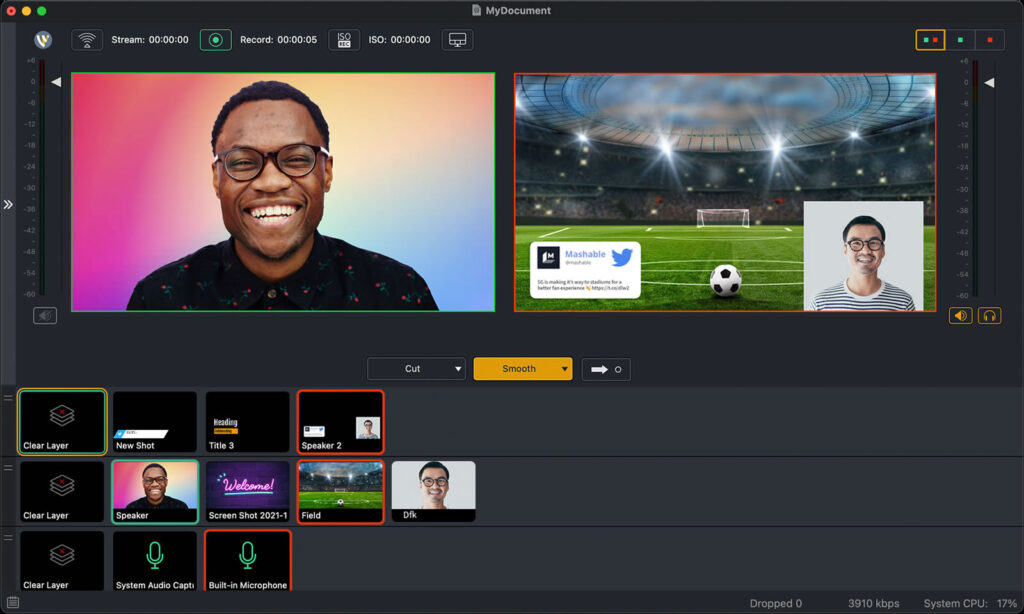
Wirecast is a professional RTMP encoding and live production software by Telestream, available for Windows and macOS, with one-time licensing from $599 for the Studio tier.
Wirecast operates as a complete broadcast control environment. The Rendezvous remote guest system brings external contributors into the broadcast at approximately 120ms latency on European networks — substantially lower than OBS WebRTC plugin setups. ISO recording captures individual input sources to separate MP4 files in parallel with the live stream output, enabling clean post-production edits from isolated source recordings.
For RTMP output to a custom media server, Wirecast uses Output Settings in the upper menu → choose RTMP Server, where you paste the server publish URL and stream ID into separate fields. For WebRTC-compatible downstream playback via Ant Media Server’s transcoding pipeline, set the H.264 encoding profile to Baseline inside Wirecast’s encoding configuration — Baseline profile is a requirement for WebRTC compatibility.
Technical specifications:
- Multi-bitrate output: simultaneous streams at multiple quality levels in a single output session
- Remote guests: up to 7 contributors via Wirecast Rendezvous at approximately 120ms latency
- ISO recording: individual per-source MP4 recording in parallel with live output
- Sports production features: instant replay and scoreboard (Pro tier)
- OS compatibility: macOS 10.15 (Catalina) or newer; Windows 10 build 1809 or newer; Windows 11
The honest trade-off: Wirecast’s free trial period watermarks both audio and video output — you cannot evaluate your full production signal without a license. For high-stakes recurring broadcasts where encoder reliability over hundreds of hours justifies licensing investment, Wirecast’s integrated production environment reduces per-broadcast technical risk compared to OBS plugin stacks.
3. vMix — Best RTMP Encoder for Complex Multi-Camera Windows Productions

vMix is a Windows-only live production and RTMP encoding software supporting unlimited camera inputs, hardware-accelerated encoding via NVENC and QuickSync, and output up to 4K/60p, with licensing from $60 for the entry tier.
vMix operates as a full virtual production switcher. Inputs — cameras, NDI sources, media files, animated graphics, PowerPoint decks, playlists, solid color sources — stack in a multi-layer input panel. The mix bus architecture allows independent audio routing separate from video switching, providing broadcast-grade audio mixing from within the same interface managing video production. The title system handles animated lower-thirds and scoreboards without external graphics software.
NVENC and QuickSync hardware acceleration in vMix enables 4K/60p encoding on a mid-range Windows workstation without prohibitive CPU load. vMix supports simultaneous RTMP output to up to 3 destinations — including self-hosted RTMP servers — while the vMix Ant Media setup guide covers the Custom RTMP Server field configuration, Baseline profile selection, and 1-second keyframe interval required for WebRTC-compatible ingest.
Technical specifications:
- Input sources: unlimited (hardware resource-limited)
- Output resolution: up to 4K/60p with NVENC or QuickSync hardware acceleration
- Simultaneous RTMP outputs: multiple destinations concurrently from one production session
- Virtual sets: HD chroma-key virtual environments with real-time full-motion zoom
- OS constraint: Windows 10 or newer — macOS is not supported at any license tier
The honest trade-off: vMix’s Windows-only requirement is a hard constraint, not a preference. macOS production environments have no path to vMix regardless of budget. For Windows-based productions managing 4 or more cameras with integrated graphics and audio mixing, vMix delivers a better stability-to-cost ratio than Wirecast for that specific configuration.
4. Streamlabs Desktop — Best RTMP Encoder for Content Creators and Social Streamers
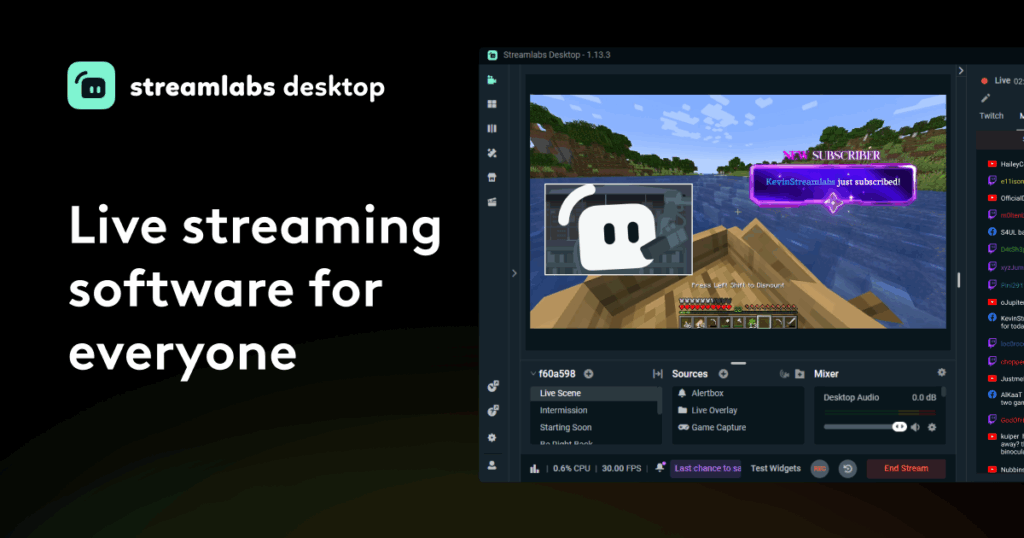
Streamlabs Desktop is an OBS-based RTMP encoder built for content creators, with a streamlined interface, built-in Twitch alert overlays, stream labels, and monetization widgets, available free with optional Streamlabs Ultra at $19/month.
Streamlabs Desktop runs on OBS Studio’s core encoding engine. Its RTMP output technical capabilities — H.264 via x264 or NVENC, configurable bitrate, keyframe interval, and custom RTMP server URL support — match OBS Studio exactly at the protocol level. The differentiation is workflow: Streamlabs integrates Twitch alerts, subscriber notifications, donation tickers, and stream labels into the production interface without requiring separate browser-source plugin configuration.
For custom RTMP server streaming, Streamlabs uses the same settings path as OBS — Settings → Stream → Custom RTMP server address and stream key — with identical encoding configuration options. The Ultra subscription adds cloud recording, premium overlay theme access, and the Multistream feature for simultaneous platform broadcasting.
Technical specifications:
- Encoding engine: OBS Studio core (RTMP output technical specifications are identical to OBS)
- Native platform integrations: Twitch, YouTube, Facebook, TikTok, Kick — preconfigured ingest URLs
- Alerts and widgets: native in-app, no browser-source plugin required
- CPU overhead: marginally higher than OBS due to additional UI processes running in parallel
- OS support: Windows and macOS
The honest trade-off: Streamlabs Desktop releases feature updates on an aggressive cadence that occasionally precedes stability validation, generating reports of performance regressions after version updates. For productions where encoder stability over a multi-hour broadcast is the primary constraint, OBS Studio’s more conservative release schedule carries lower per-update risk. Streamlabs Ultra’s premium overlay library is genuinely valuable for content creators who want production-quality graphics without custom design work.
5. XSplit Broadcaster — Best RTMP Encoder for Windows Gaming and Event Streams
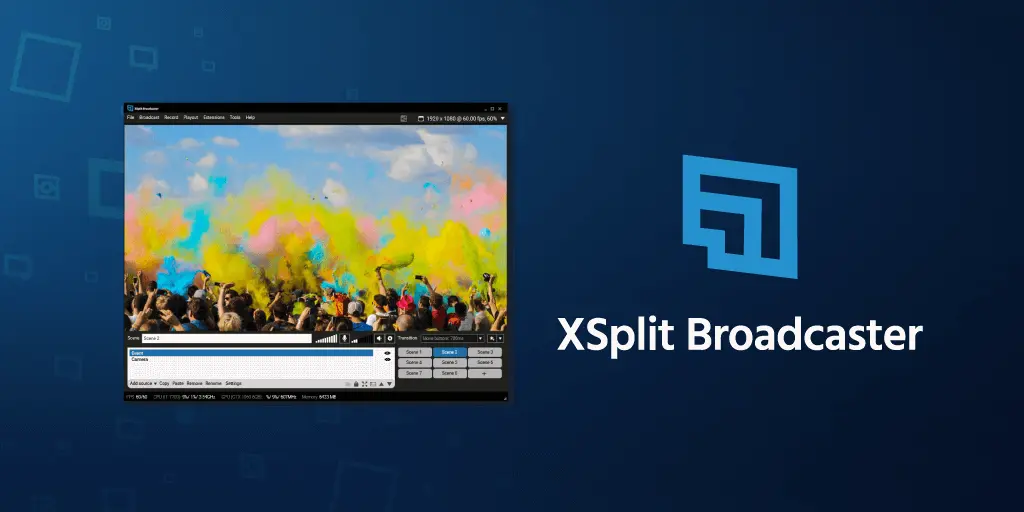
XSplit Broadcaster is a Windows-only RTMP encoder and live production software optimized for gaming productions and live events, with a free tier and paid plans from $8.32/month, featuring scene management, NVENC hardware acceleration, and platform-preconfigured RTMP output.
XSplit’s scene transition system — supporting cut, fade, stinger, and custom animations — gives gaming productions a polished switch between gameplay, face-camera-only, and intermission screens without the manual configuration feel of raw encoder scene cuts. Native integrations with gaming platforms pre-populate RTMP ingest URLs, stream keys, and encoding presets, reducing per-broadcast setup time for platform-specific streaming.
For custom RTMP server destinations, XSplit accepts custom RTMP URLs under its Custom RTMP output option, using the standard server-address-plus-stream-key format. NVENC hardware acceleration keeps CPU load low during gameplay sessions where the GPU manages both real-time game rendering and stream encoding in parallel without resource contention.
Technical specifications:
- Scene transitions: cut, fade, stinger, and custom animation support
- RTMP output: custom server destinations plus all major streaming platforms preconfigured
- Hardware encoding: NVENC, QuickSync
- OS: Windows only — no macOS support at any plan tier
- Free tier: watermarks local recordings; live stream output is not watermarked
The honest trade-off: OBS Studio matches XSplit’s technical specifications on Windows at zero cost. XSplit’s value proposition is its polished production UX and gaming-platform integrations for operators who find OBS’s manual configuration a barrier to consistent broadcast quality. For macOS users, XSplit is unavailable — OBS and Wirecast are the only cross-platform options in this comparison.
What is the Difference Between Software and Hardware RTMP Encoders?
Software RTMP encoders run on a general-purpose computer and use the CPU or GPU to compress video. Hardware RTMP encoders use dedicated processing silicon — either purpose-built appliances or integrated encoder chips — to compress and transmit video independently of any host computer’s processing resources.
The table below covers 6 rows and 3 columns comparing software and hardware encoders across the production dimensions that determine which approach fits a given deployment.
| Dimension | Software Encoders | Hardware Encoders |
|---|---|---|
| Cost | $0–$599 software license | $295–$12,000+ hardware device |
| CPU dependency | High (x264 SW) to Low (NVENC HW) | None — dedicated encoding silicon |
| Reliability | OS, driver, and application-dependent | Higher — purpose-built, fewer failure points |
| Portability | Requires laptop or desktop computer | Compact, battery-operable field units available |
| Codec flexibility | High — configurable via software updates | Firmware-limited |
| Best deployment | Studio and desktop productions | Field broadcasts, mission-critical live events |
Hardware encoders — Teradek VidiU Pro, Haivision KB, LiveU Solo — operate as standalone devices accepting HDMI or SDI inputs and pushing RTMP streams over ethernet, Wi-Fi, or cellular bonding. Hardware encoding eliminates OS-level failure points: driver crashes, background application interference, and OS update reboots do not interrupt a hardware encoder mid-broadcast.
Software encoders with NVENC or QuickSync hardware acceleration close the reliability gap substantially for stationary studio environments while retaining flexibility. A production running OBS with NVENC on a dedicated Windows machine approaches hardware encoder reliability for fixed-location broadcasts. The hybrid workflow — a software production environment (vMix or Wirecast) feeding a hardware encoder for the final RTMP transmission step — addresses both needs: software flexibility for switching and graphics, hardware reliability for the transmission-critical path.
What RTMP Server Do These Encoders Push To?
Every RTMP encoder — OBS, Wirecast, vMix, Streamlabs, XSplit, and hardware units — pushes its compressed video signal to an RTMP server’s ingest endpoint on TCP port 1935. That server is responsible for every aspect of the stream’s delivery to viewers: transcoding, protocol conversion, adaptive bitrate packaging, viewer authentication, CDN distribution, and concurrent viewer scaling.
This is the piece most encoder comparisons omit entirely, and it is the piece that determines what your audience actually experiences.
When OBS connects to rtmp://your-server/LiveApp/streamId, the RTMP handshake completes and OBS pushes encoded chunks to the server’s ingest buffer. From that point, the encoder’s role in the broadcast is complete. Everything that happens next — the viewer experience, the playback quality, the delivery latency, the maximum concurrent viewership — is a function of the server’s architecture and capabilities, not the encoder’s.
The 5 capabilities that separate a basic RTMP ingest point from a production-grade streaming infrastructure:
Transcoding — Does the server re-encode the 1080p60 ingest stream into multiple quality tiers (720p, 480p, 360p) for adaptive bitrate delivery? Or does it pass through the single quality level the encoder produced? Viewers on mobile connections receive unwatchable quality from a pass-through server that receives a 6,000 Kbps 1080p stream and delivers it unchanged.
Protocol conversion — Does the server convert the RTMP ingest into WebRTC for sub-500ms glass-to-glass latency delivery, HLS for broad device and CDN compatibility, and CMAF/DASH for streaming device support? Protocol-limited servers lock viewers into RTMP playback, which has no native browser support in 2026.
Scaling — Can the server handle 10,000 concurrent WebRTC viewers? 100,000 HLS viewers? Can the infrastructure scale horizontally across a cluster when single-instance capacity is exceeded? A fixed-capacity server becomes the ceiling on your broadcast’s audience size regardless of encoder quality.
Stream security — Does the server enforce JWT stream security on publish and play endpoints? Does it support IP-based filtering, webhook-based stream authorization callbacks, and time-based one-time password (TOTP) protection? An open RTMP ingest endpoint accepts any encoder that knows the server address.
Recording — Does the server record streams to MP4 or WebM locally, or to S3 stream recording and compatible cloud object storage in real time without interrupting the live broadcast? Server-side recording captures the stream from the ingest point — encoder-side recording captures only what the encoder sees, without server-applied transcoding.
These 5 capabilities are server-layer decisions entirely outside the encoder’s control. Pairing a high-quality encoder with an underpowered or capability-limited RTMP server produces a professional ingest signal that gets bottlenecked at distribution. The encoder selection and the server selection are parallel decisions that together determine the production ceiling.
How Do You Connect Each RTMP Encoder to Ant Media Server?
Connecting any RTMP encoder to Ant Media Server requires 3 steps: create a live stream in the Ant Media Server Management Console to generate a stream ID, copy the RTMP publish URL in the format rtmp://your-server-ip/LiveApp/streamId, and enter the server address and stream key into the encoder’s stream output settings.
Ant Media Server accepts RTMP ingest from all 5 encoders in this comparison — plus hardware units including Teradek, Tricaster, and Gosolo — using the same ingest URL structure across all of them. RTMP protocol listens on port 1935 by default; that port requires an open firewall rule on the server instance for ingest connections to complete.
OBS Studio → Ant Media Server:
Go to Settings → Stream, select Service: Custom, and enter:
- Server:
rtmp://your-server-ip/LiveApp - Stream Key: your stream ID (example:
mystream1)
For low-latency output optimized for WebRTC playback downstream: Settings → Output → Encoder: x264 → Preset: veryfast → Tune: zerolatency → Keyframe Interval: 1 second.
Wirecast → Ant Media Server:
Click Output Settings in the upper menu → choose RTMP Server → click OK, then enter:
- Address:
rtmp://your-server-ip/LiveApp - Stream ID: your stream ID from the Management Console
For WebRTC-compatible H.264 output: Encoding Configuration → Profile: Baseline. Wirecast’s default profile setting is Main; Baseline is required for WebRTC decoder compatibility via Ant Media Server.
vMix → Ant Media Server:
Click the gear icon next to the Stream button → Choose Custom RTMP Server, then enter:
- URL:
rtmp://your-server-ip/LiveApp/(without stream ID) - Stream Key: your stream ID (example:
mystream1)
For WebRTC-compatible output: set Profile to Baseline and Keyframe Interval to 1 in the encoding quality settings. vMix uses the same two-field format as OBS — server URL and stream key are entered as separate fields.
Streamlabs Desktop → Ant Media Server:
Settings → Stream → Service: Custom RTMP, then enter:
- Server:
rtmp://your-server-ip/LiveApp - Stream Key: your stream ID
Encoding settings are identical to OBS Studio — zerolatency tune and 1-second keyframe interval for low-latency WebRTC delivery downstream.
XSplit Broadcaster → Ant Media Server:
Broadcast → Set up a new output → Custom RTMP, then enter:
- RTMP URL:
rtmp://your-server-ip/LiveApp(without stream ID) - Stream Key: your stream ID (example:
mystream1)
XSplit uses the same two-field format as OBS — the server URL goes into the RTMP URL field without a stream ID, and the stream ID is entered separately in the Stream Key field.
Once any encoder connects and begins publishing, the Ant Media Server Management Console shows the stream status change to Broadcasting. Ant Media Server then handles adaptive bitrate transcoding across the configured quality ladder, WebRTC delivery at sub-500ms latency, HLS packaging for device-broad playback, and CMAF/DASH output — all from the single RTMP ingest stream the encoder is pushing on port 1935.
For production deployments requiring stream authentication, Ant Media Server supports publish tokens appended to the stream key: streamId?token=yourpublishtoken. This prevents unauthorized RTMP publishing to the server ingest endpoint without requiring any change to the encoder’s core stream configuration.
What are the 5 Key Factors for Choosing an RTMP Encoder?
The 5 key factors for choosing an RTMP encoder are budget and licensing model, operating system compatibility, hardware acceleration support, multi-source production complexity, and team technical expertise. Each factor eliminates options before feature comparison begins.
Budget sets the shortlist before any feature evaluation. OBS Studio eliminates encoder software cost entirely — it is production-capable at $0 with no watermarks and no feature restrictions. Streamlabs Desktop’s free tier covers most content creator workflows without the $19/month Ultra subscription. For organizations where encoder stability over hundreds of broadcast hours and reduced configuration overhead justify licensing investment, Wirecast ($599 one-time) and vMix (from $60 one-time) provide integrated production environments that reduce per-broadcast technical risk.
Operating system eliminates vMix and XSplit for macOS production environments immediately. Both are Windows-only at every license tier. OBS Studio, Wirecast, and Streamlabs Desktop all support macOS. If the production team operates on macOS machines, vMix’s production capabilities are unavailable — this is a hard constraint, not a preference trade-off.
Hardware acceleration determines encoding quality and resolution achievable on existing hardware. NVENC, QuickSync, and AMD VCE are supported across all 5 encoders in this comparison. Without hardware acceleration, software x264 encoding at 1080p60 consumes 60–80% of a 6-core CPU just for encoding — leaving minimal headroom for scene compositing, graphics rendering, and OS background processes during a live broadcast. NVENC reduces that to 5–15% on the same hardware.
Multi-source production complexity separates scene-switching encoders from pure encoding tools. Broadcasts involving 3 or more camera inputs, real-time graphics overlays, remote guest integration, and instant replay require either OBS with a plugin stack, or Wirecast and vMix with those capabilities built into the core production interface. If the requirement is encoding a single camera source and pushing it to a server, all 5 options in this comparison are equally capable of that task — cost and OS compatibility become the only meaningful differentiators.
Team technical expertise is the factor most encoder comparisons omit. OBS and its Streamlabs variant give you complete configuration control and complete configuration responsibility. Wirecast and vMix abstract encoder complexity into integrated interfaces with platform-preconfigured output presets, reducing the configuration surface area a broadcast operator needs to manage during a live production. For a single experienced technical operator, OBS’s configuration depth pays off quickly. For rotating operators or teams without dedicated streaming technical expertise, Wirecast and vMix reduce per-broadcast error rate.
Frequently Asked Questions
What is the best free RTMP live streaming encoder software in 2026?
What is the difference between an RTMP encoder and an RTMP server?
Do all 5 RTMP encoders in this comparison work with Ant Media Server?
rtmp://server-ip/LiveApp/streamId, compatible with the custom RTMP server output setting available in all 5 encoders. Hardware encoders including Teradek and Tricaster use the same ingest URL format.What bitrate should I set in my RTMP encoder for 1080p streaming?
What keyframe interval setting should I use for RTMP streaming?
Can I stream from one encoder to multiple RTMP destinations simultaneously?
Conclusion
The 5 best RTMP live streaming encoder software options in 2026 — OBS Studio, Wirecast, vMix, Streamlabs Desktop, and XSplit Broadcaster — cover every production scenario from zero-budget cross-platform broadcasting to complex Windows-based multi-camera professional production. Budget, operating system, hardware acceleration, production complexity, and team expertise together determine which encoder fits a given workflow. No single encoder wins every category.
Every one of those encoders pushes a compressed RTMP stream to rtmp://server-ip/LiveApp/streamId on port 1935. What the server does with that stream from that point — transcoding to adaptive bitrate quality tiers, converting RTMP to WebRTC for sub-500ms delivery, packaging HLS for device-broad playback, securing publish and play endpoints with JWT authentication, and scaling viewer delivery across a clustered infrastructure — determines what your audience receives.
You can test that full RTMP ingest-to-viewer pipeline — from OBS or Wirecast on your production machine to WebRTC playback at sub-500ms latency and HLS delivery across concurrent devices — with Ant Media Server’s 14-day free trial server deployment.