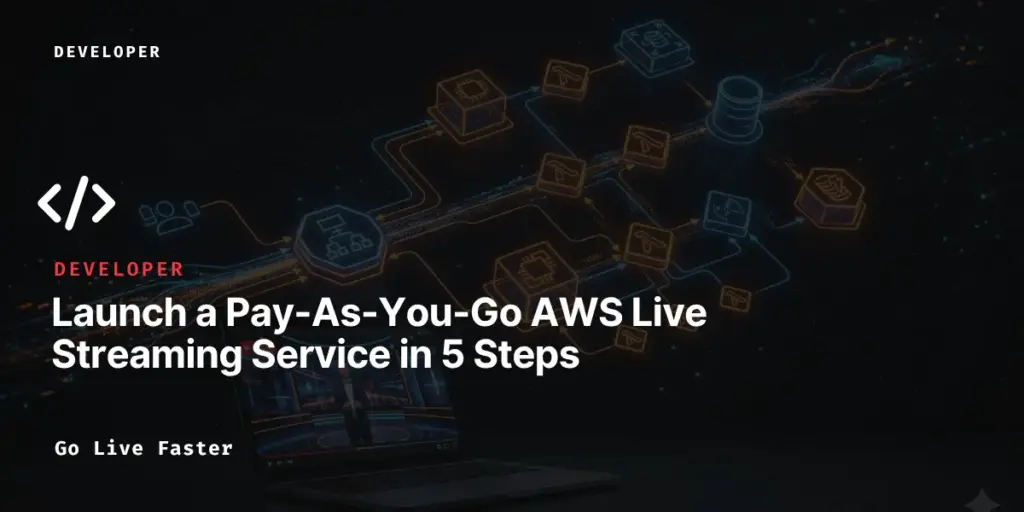

Building a live streaming service on AWS has traditionally meant stitching together load balancers, auto-scaling groups, security groups, and MongoDB — before you’ve even streamed a single frame. Ant Media Server’s Auto-Managed Live Streaming Service collapses all of that into one CloudFormation template. The server boots when a stream begins, stops when it ends, and the bill reflects only your actual usage — up to 5× cheaper than always-on setups.
Right now, the Auto Manage Solution deploys the Single Standalone server of Ant Media. In next version, the cluster mode will also be supported.

This guide walks you through every click — from AWS Marketplace subscription to your first live stream playing in a browser with Ant Media auto-managed live streaming service on AWS— in under 10 minutes.
Why Choose Ant Media Server Auto-Managed Live Streaming Service on AWS?
Every team building a live streaming service on AWS runs into the same three walls. This Ant Media Server’s solution tears all three down at once.
Zero Operational Overhead
No manual server provisioning, no cluster management, no scaling configuration. Everything runs automatically from startup to shutdown.
~5× Cost Savings
Traditional platforms bill 24/7 even during idle periods. This service charges only when streams are active — no hidden fees, no idle costs.
Full Content Ownership
Your streams stay in your own AWS account. Unlike SaaS platforms, no third party stores, analyzes, or monetizes your video data.
Custom Pipelines, No Upsells
Add AI moderation, recording, analytics, or any workflow — without needing an enterprise gatekeeping or begging for custom support.
How the Auto-Managed Live Streaming Service Works
Three AWS-managed components power the entire lifecycle of your live streaming service on AWS — automatically, with no manual intervention.
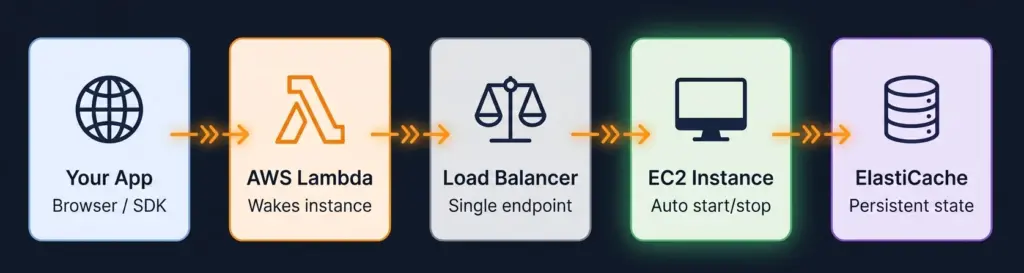
Lambda detects the first incoming request and wakes the EC2 instance. EventBridge monitors for idle streams and triggers a shutdown after your configured Period. ElastiCache stores all settings, users, and stream records persistently — so nothing is lost when instances stop and restart.
Prerequisites — Have These Ready Before You Start
- An active AWS account with the necessary permissions
- Access to AWS Marketplace — you’ll subscribe to Ant Media Server Enterprise (7-day free trial)
- An EC2 Key Pair created in your target AWS region (needed if you ever SSH into the instance)
ℹNo SSL certificate is required for the initial setup. The service provides a Lambda URL that works immediately over HTTPS. You can add a custom domain with your own certificate from AWS Certificate Manager later.
Step-1: Subscribe to Ant Media Server on AWS Marketplace
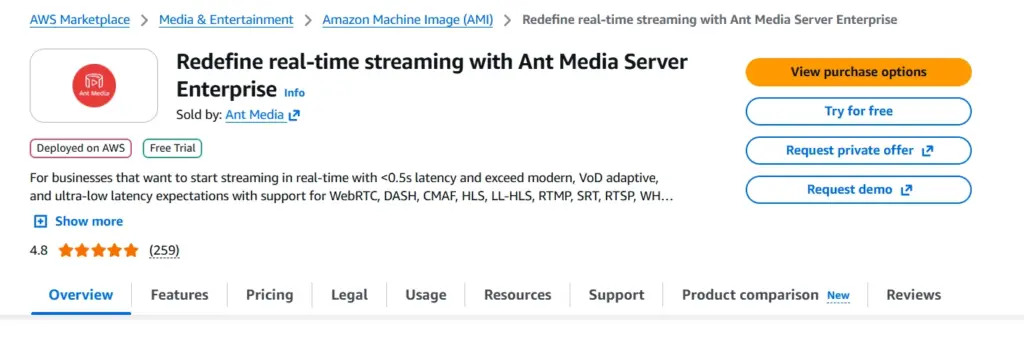
Before deploying your live streaming service on AWS, your account needs an active Marketplace subscription. Subscribing is free and includes a 7-day free trial — you only pay for EC2 compute time when the server is actively running.
- Go to the Ant Media Server Enterprise listing on AWS Marketplace
- Click “View purchase options”
- On the Purchase details page, select “Usage-based” under Purchase details. Click the “Subscribe” button — no charges are incurred at this point
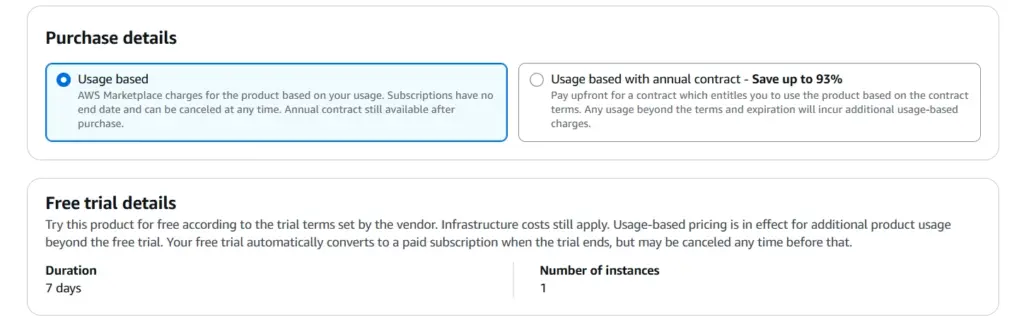
- Wait for the confirmation. It takes 2-3 minutes to complete the subscription.
After clicking Subscribe, do NOT click “Continue to Configuration.” The correct deployment method for the Auto-Managed live streaming service on AWS is via CloudFormation — which we will do in the next steps
Step-2: Download CloudFormation Template
Ant Media provides a pre-built CloudFormation template specifically for the Auto-Managed live streaming service on AWS. This one file defines every resource — Lambda, EventBridge, ElastiCache, Load Balancer, EC2 Launch Template, and security groups — so you never have to configure them individually.
- Download the CloudFormation template from the S3 Bucket
- Save the file (e.g.,
Auto-Managed-Ant-Media-Server-Stack-latest.json) somewhere easy to find — you’ll upload it in the next step
Download the Auto-Managed template specifically — not the standard CloudFormation autoscale template. They are different files. The Auto-Managed one includes the Lambda + EventBridge pay-as-you-go spin-up/shutdown logic.
Step-3: Create New CloudFormation Stack
Now, we will upload the CloudFormation template to create the Auto-Managed live streaming service on AWS.
- Log in to the AWS Management Console
- Search for “CloudFormation” in the top search bar and click it
- Click “Create stack” → select “With new resources (standard)”
- Under Specify template, choose “Upload a template file”
- Click “Choose file” and select the JSON/YAML file downloaded in Step 2
- Click “Next”
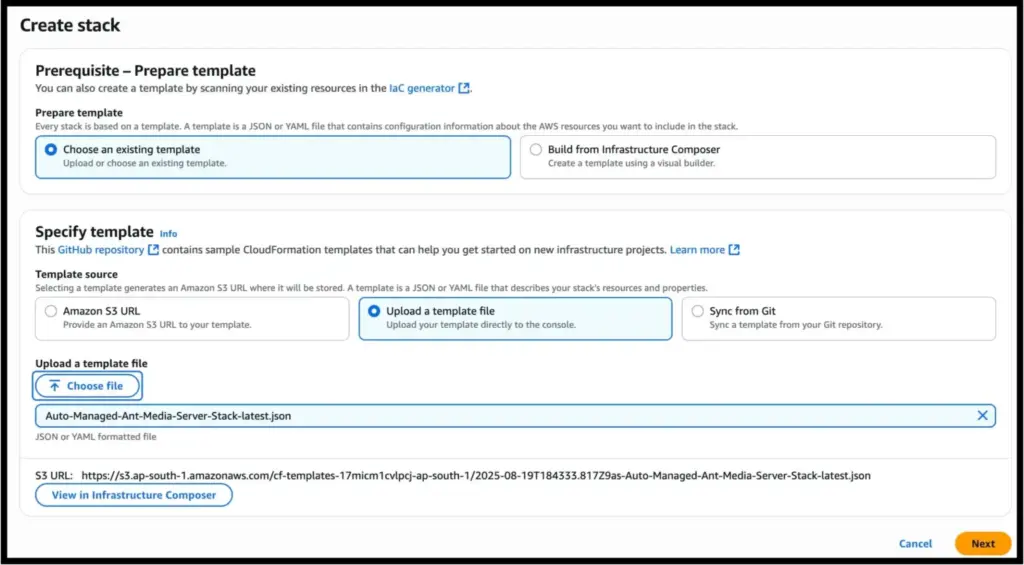
Confirm you are in the correct AWS Region before proceeding (top-right corner of the console). Your EC2 Key Pair must exist in the same region as the stack.
Step-4: Configure Stack Parameters
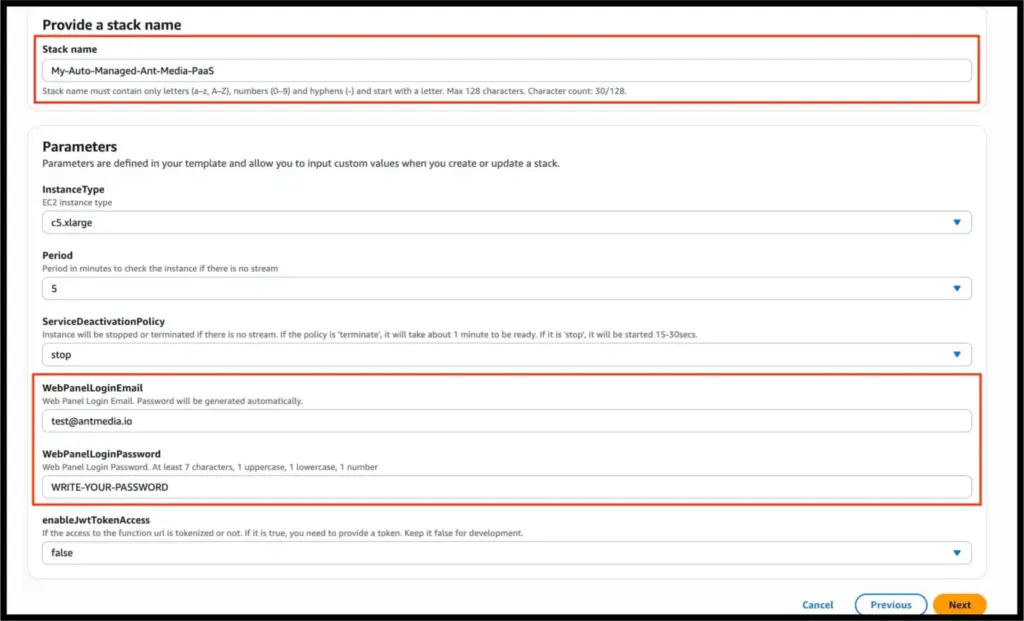
This is the Specify stack details page. Each field maps to a real AWS resource setting. A wrong value here is harder to fix post-deployment than before it.
- Give a
nameto your Stack and Enter Web PanelEmailandPassword - InstanceType: EC2 instance type for your streaming server
- Period: Minutes of no active stream before the instance stops or terminates. Default is 3
- ServiceDeactivationPolicy: Choose
stop(faster restart, ~$5–10/mo idle) orterminate(no idle charge, ~$0–5/mo). See below for more details. - enableJwtTokenAccess: Keep
falsefor development. Settruefor production with token-based stream auth
Stop vs. Terminate — Choose Your Deactivation Policy
This setting controls what happens to the EC2 instance after no stream has been active for the configured Period.
Stop (Default — Recommended)
Instance pauses. EBS storage and Elastic IP are preserved. Restart takes 15–30 seconds. AWS charges ~$5–10/month for idle (EBS + Elastic IP). Best for frequent use.
Terminate
The instance is fully destroyed. No idle EBS or Elastic IP charges (~$0–5/month). Cold start takes ~60 seconds. Settings persist in ElastiCache. Best for infrequent or cost-sensitive use.
Step-5: Deploy, Verify & Go Live
- Click “Next” through the remaining pages — defaults are fine
- On the Review and Create page, scroll to the bottom
- Check: “I acknowledge that AWS CloudFormation might create IAM resources”
- Click the “Submit” button
- Watch the Events tab as resources are created one by one
- When status shows CREATE_COMPLETE (~5 minutes), your live streaming service on AWS is deployed
Keep the Events tab open while waiting. If anything fails, it tells you exactly which resource failed and why — far faster than guessing.
Find Your Lambda Endpoint URL
- Once the stack shows
CREATE_COMPLETE, click the “Outputs” tab - Copy the value for LambdaEndpointURL — this is your single endpoint for everything
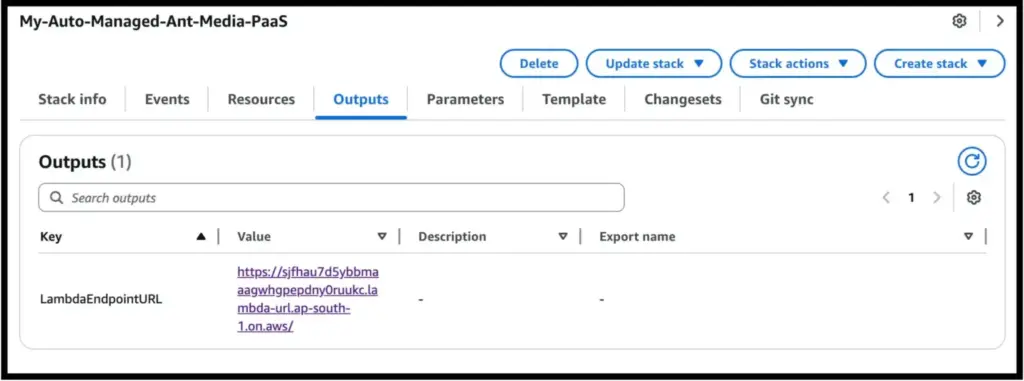
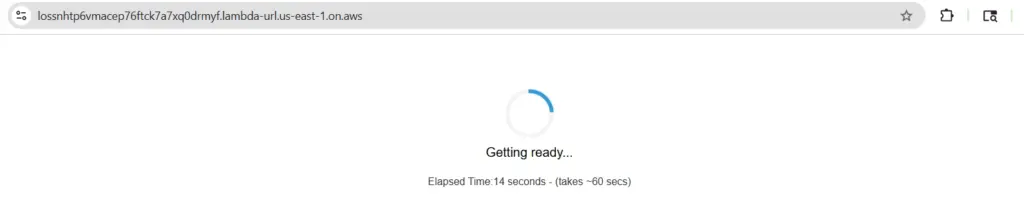
- Visiting the lambda URL triggers a backend instance (first spin-up ~60 seconds; subsequent ~20 seconds)
- After the spin-up, the Ant Media Server instance login screen appears. Once loaded, log in with the email and password you set in Step 4
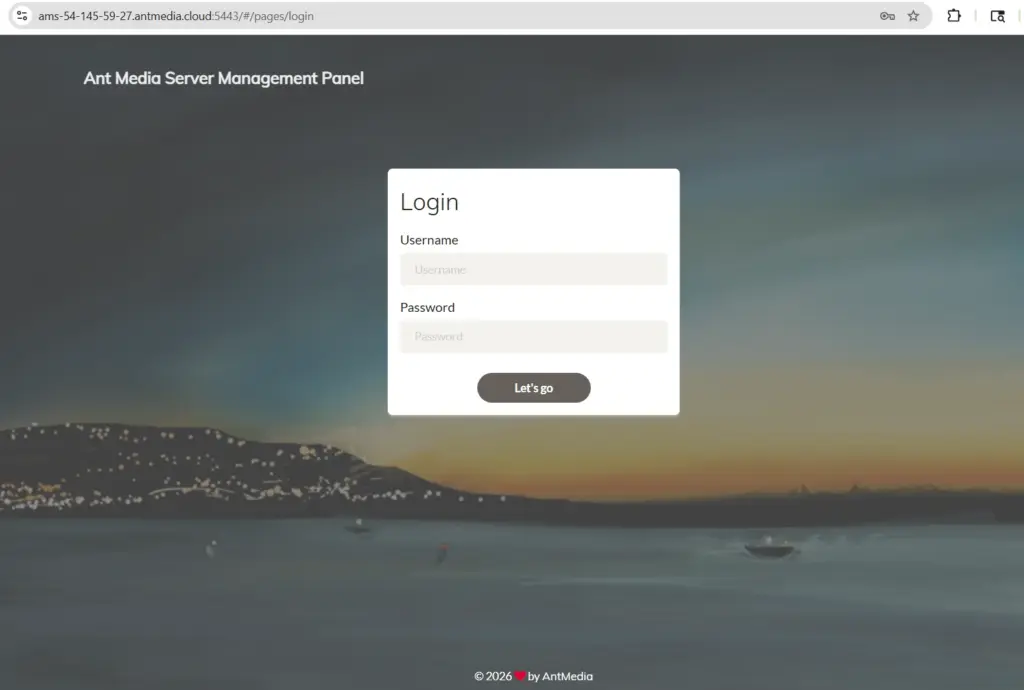
- Congratulations! Your live streaming service on AWS is ready
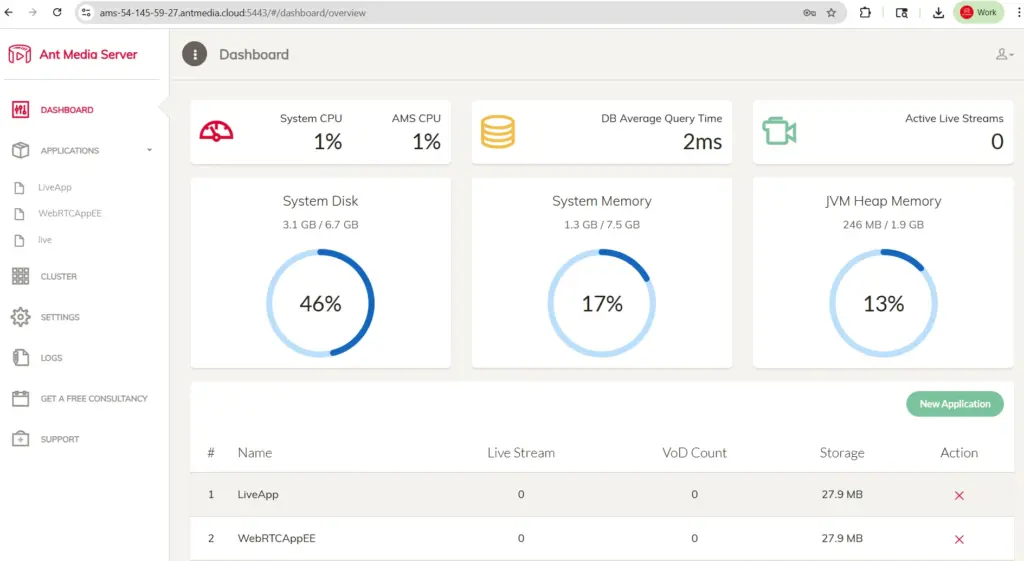
Start Your Live Streaming Service
There are two ways to use your live streaming service on AWS right away:
Option-1: Browser direct (quickest way to verify)
- Open the Lambda URL in your browser — you’ll see a “Getting ready…” spinner (~60 seconds first time, ~20 seconds after that)
- Once loaded, log in with the email and password you set in Step 4
- Publish a WebRTC stream using the sample WebRTC publish page
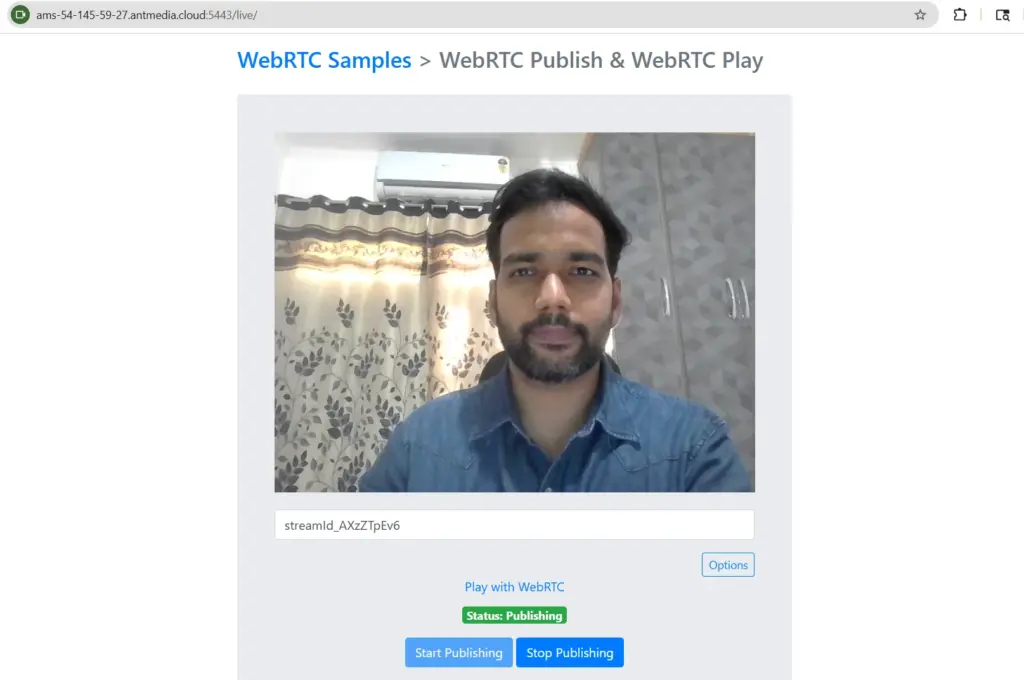
- Confirm WebRTC plays back.
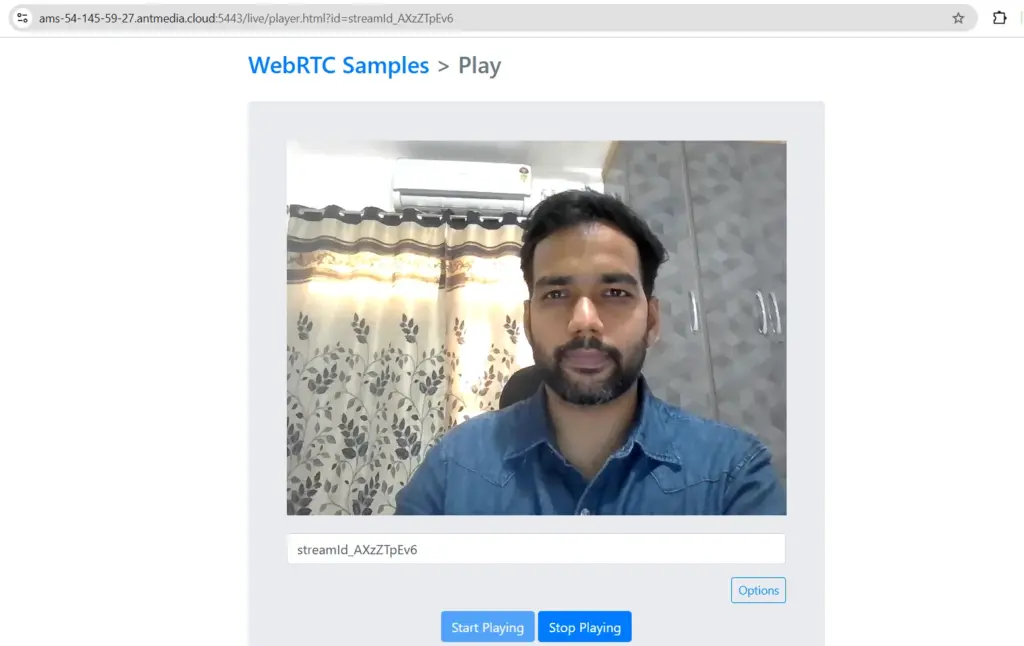
Check all the supported publish and play protocols with Ant Media Server auto-managed live streaming service on AWS.
Option-2: JavaScript SDK (recommended for app integration)
JavaScript SDK supports Lambda URL that the Auto-Managed PaaS CloudFormation Template generates. Just give the Lambda URL, and you can take advantage of JavaScript SDK fully.
To learn more about the AMS JavaScript SDK, check here.
Initialize the JavaScript as follows to publish stream:
// Pass your Lambda URL as the httpEndpointUrl
var webRTCAdaptor = new WebRTCAdaptor({
  httpEndpointUrl: "<REPLACE_WITH_LAMBDA_URL>",
  localVideoElement: document.getElementById("localVideo"),
  callback: (info, obj) => {
   console.log("callback info: " + info);
   if (info == "initialized")
   {
      webRTCAdaptor.publish("myStream")
   }
   else if (info == "publish_started") {
      console.log("publish started");
   }
   else if (info == "publish_finished") {
      console.log("publish finished")
   }
  }
});
Frequently Asked Questions
Is there a fixed monthly charge even when I’m not streaming?
ServiceDeactivationPolicy. With stop (default), AWS charges for the Elastic IP and EBS storage even when the instance is stopped — typically $5–10/month. With terminate, the instance is fully destroyed when idle so there are no EBS or Elastic IP charges — typical idle cost is $0–5/month for Lambda and EventBridge usage only. EC2 compute is only charged when the instance is actively running.What happens to my settings and stream data when the instance shuts down?
terminate. To preserve recordings, enable S3 recording from the Ant Media web panel so recordings are written to S3 before termination.How long does it take to spin up after being idle?
stop policy is recommended. You can also pre-warm the instance by visiting the Lambda URL before a scheduled stream begins.How do I shut down the live streaming service completely and stop all AWS charges?
How many concurrent streams can the service handle?
c5.xlarge typically handles 40–45 concurrent WebRTC streams comfortably at 720p. For more capacity, update the CloudFormation stack with a larger instance type (e.g., c5.2xlarge or c5.4xlarge) without redeploying from scratch. The Auto-Managed live streaming service on AWS is a single-instance setup; for large-scale multi-server clustering, the standard Ant Media CloudFormation autoscale template is the better fit.What to Explore Next
You now have a fully operational live streaming service on AWS that starts on demand, stops when idle, and bills only for active usage. Here are the natural next steps:
- Enable S3 recording — go to Settings → Recording in the Ant Media web panel so recordings survive instance terminations
- Integrate the JS SDK — use the Lambda URL in the Ant Media JavaScript SDK to add live streaming to your web or mobile app
- Set AWS Budget alerts — create a budget alert in AWS Cost Management so you’re never surprised by a bill spike
For questions related to the Ant Media auto-managed live streaming service on AWS or otherwise, write to us at [email protected]
Visit the Ant Media GitHub Discussions or the official Ant Media documentation.
ℹCheckout the Auto-managed live streaming service on AWS setup tutorial.