
HLS (HTTP Live Streaming) is a widely used protocol for live streaming due to its compatibility with Content Delivery Networks (CDNs), making it suitable for streaming to large audiences. Traditionally, HLS streams have a latency of about 8–10 seconds, but with Low Latency HLS (LL-HLS), this can be reduced to around 3 seconds. Ant Media Server supports both HLS streaming and LL-HLS.
However, content creators and broadcasters face challenges when it comes to merging individual streams with different resolutions and audio tracks in a single stream. Without such a solution, streamers must maintain separate streams for each resolution and audio option, which can be inefficient and difficult to manage. This fragmentation causes increased server load, higher bandwidth usage, and more complex workflows for both viewers and broadcasters.
In this blog post, we’ll introduce the new HLSMerger Plugin, which solves these challenges by:
1. Create an HLS stream with multiple resolutions — offering seamless quality switching for viewers with varying internet speeds.
2. Create an HLS stream with multiple audio tracks — enabling users to choose from different language or commentary tracks in a single stream.
Let us start by installing the plugin.
Table of Contents
How Do You Build and Install the HLSMerger Plugin?
Build the Plugin
1. Clone the Ant Media Plugins repository.
git clone https://github.com/ant-media/Plugins.git2. Navigate to the HLSMergerPlugin folder.
cd Plugins
cd HLSMergerPlugin
3. Run the following Maven command to build the plugin:
mvn clean install -Dmaven.javadoc.skip=true -Dmaven.test.skip=true -Dgpg.skip=true4. The HLSMerger.jar file will be created in the target folder.
Install the Plugin
1. Copy the HLSMerger.jar file to the Ant Media Server’s plugins directory.
sudo cp HLSMerger.jar /usr/local/antmedia/plugins/2. Restart the Ant Media Server service.
sudo chown -R antmedia:antmedia /usr/local/antmedia
sudo service antmedia restart
Let’s proceed with the testing of both methods as mentioned above.
How Do You Create an HLS Stream with Multiple Resolutions?
Streaming with multiple resolutions is crucial for Adaptive Bitrate Streaming (ABR). ABR dynamically adjusts the video quality based on the viewer’s internet speed, providing a seamless viewing experience. However, ABR requires transcoding, which can be CPU-intensive. While Ant Media Server supports ABR, some users may prefer to handle this process on the client side.
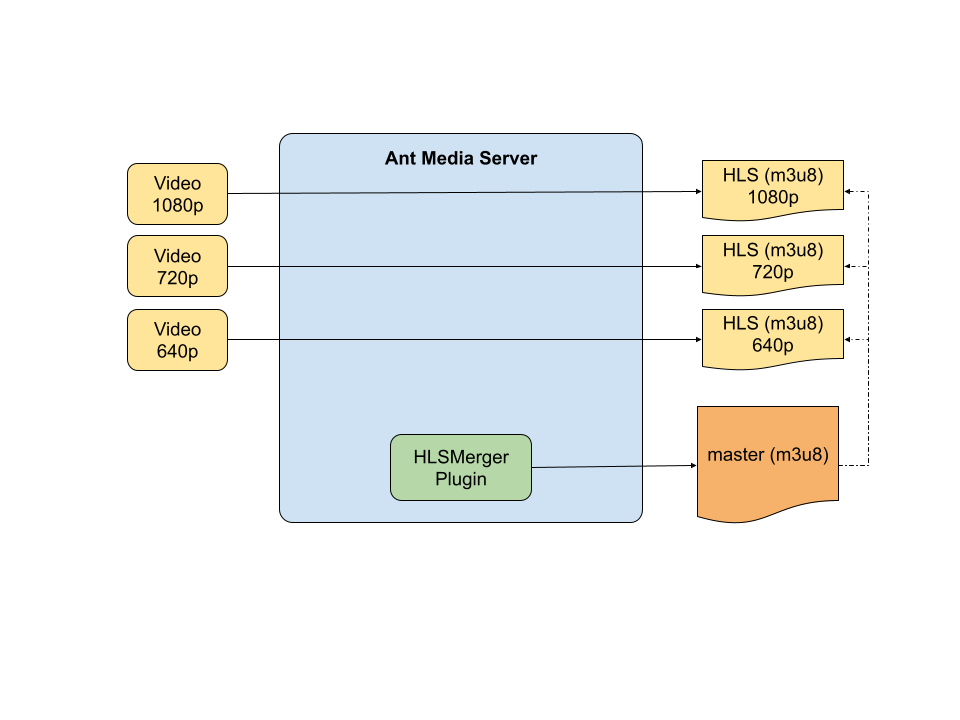
The HLSMerger Plugin offers a solution by allowing users to create streams with different resolutions and then merge these streams into a single HLS master file. This eliminates the need for transcoding on the server side, reducing CPU usage.
Usage
- Step 1: Publish multiple RTMP streams with different resolutions and bit rates using FFmpeg, run the following commands:
ffmpeg -re -stream_loop -1 -i src/test/resources/test_video_720p.flv -codec copy -f flv rtmp://localhost/LiveApp/stream1

ffmpeg -re -stream_loop -1 -i src/test/resources/test_video_360p.flv -codec copy -f flv rtmp://localhost/LiveApp/stream2- Step 2: Once these streams are published on the server, merge them using the following REST API call:
export MASTER_M3U8=merged_stream
export SERVER_ADDR=localhost

curl -X POST -H "Accept: application/json" -H "Content-Type: application/json" \
http://${SERVER_ADDR}:5080/LiveApp/rest/v1/hls-merger/multi-resolution-stream/$MASTER_M3U8 -d '["stream1", "stream2"]'
This creates a single master HLS file pointing to the different resolutions of the stream.
- Step 3: Play the output stream
The output file will be created under the application’s (LiveApp) streams folder. The URL would be as follows:
http://localhost:5080/LiveApp/streams/merged_stream.m3u8
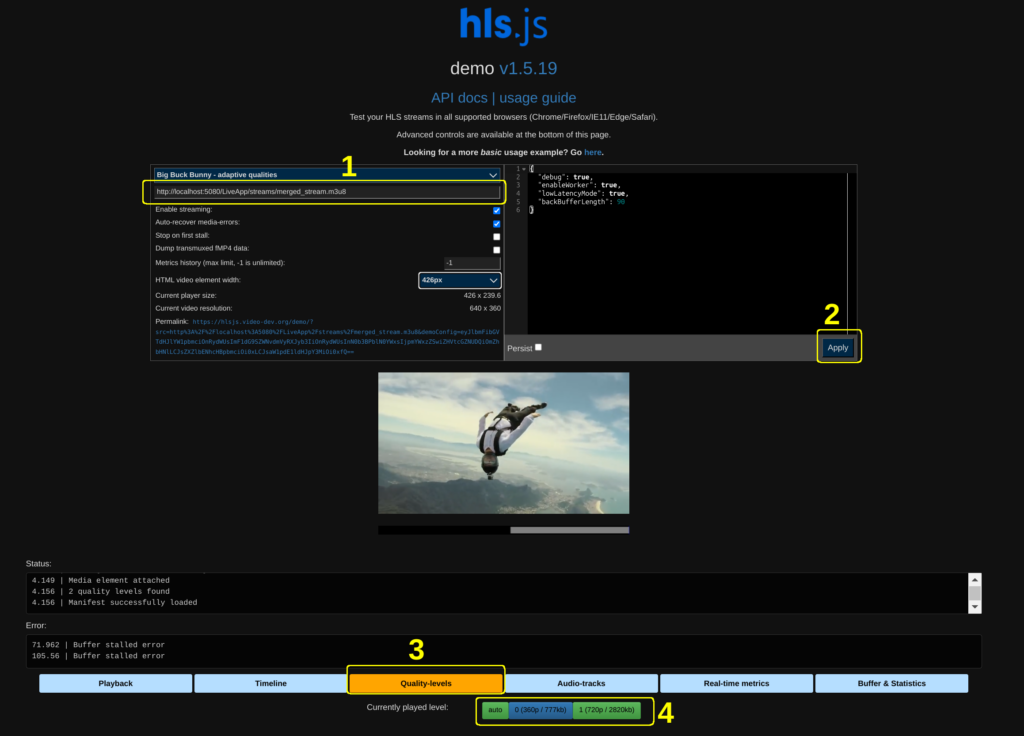
Use a compatible HLS player to play the resultant m3u8 file URL in step 2. For example in hls.js:
- Copy the master file URL into URL field as in the image.
- Click “Apply” button. Player should start to play your stream.
- Click “Quality-levels” button. You should see available resolutions below the player.
- Choose any resolution to switch the quality.
- Step 4: To delete the merged stream, call the below API:
curl -X DELETE -H "Accept: application/json" -H "Content-Type: application/json" \
http://${SERVER_ADDR}:5080/LiveApp/rest/v1/hls-merger/multi-resolution-stream/$MASTER_M3U8
How Do You Create an HLS Stream with Multiple Audio Tracks?
Adding multiple audio tracks to a single video stream is ideal for multilingual streaming. The HLSMerger Plugin enables users to merge a video stream with multiple audio streams into a single HLS playlist (M3U8 file). HLS players can then present these audio options to viewers, allowing them to select their preferred language or audio track.
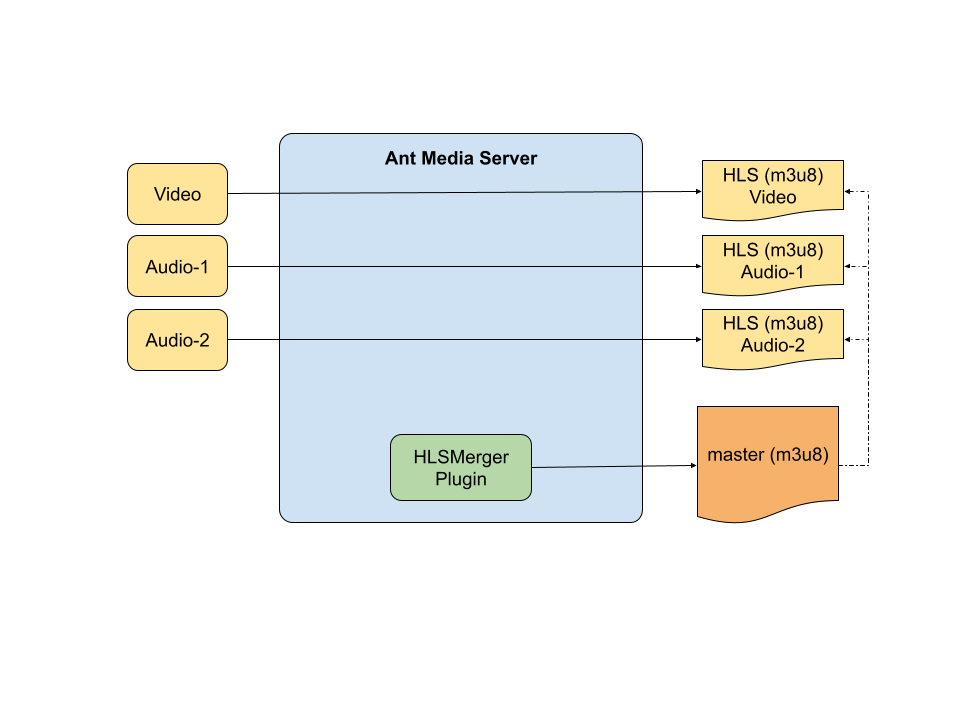
To achieve this, start by creating a video stream and separate audio streams using FFmpeg.
- Step 1: Set the Segment Duration to 10 seconds in LiveApp Application Settings in Ant Media Server Dashboard.
- Step 2: Create Video stream
ffmpeg -re -stream_loop -1 -i src/test/resources/test_video_720p.flv -an -codec copy -f flv rtmp://localhost/LiveApp/videoStream- Step 3: Create Audio Streams
ffmpeg -re -stream_loop -1 -i src/test/resources/test_video_720p.flv -vn -codec copy -f flv rtmp://localhost/LiveApp/audiostream1

ffmpeg -re -stream_loop -1 -i src/test/resources/test_video_720p.flv -vn -codec copy -f flv rtmp://localhost/LiveApp/audiostream2- Step 4: Merge the audio streams with the video stream using the following REST API call:
export MASTER_M3U8=merged_stream
export SERVER_ADDR=localhost

curl -X POST -H "Accept: application/json" -H "Content-Type: application/json" \
http://${SERVER_ADDR}:5080/LiveApp/rest/v1/hls-merger/videoStream/multi-audio-stream/$MASTER_M3U8 -d '["audiostream1", "audiostream2"]'
Once merged, the M3U8 file will use the audio group feature of HLS, enabling audio selection in compatible players.
- Step 5: Play the output stream
The output file will be created under the application’s (LiveApp) streams folder. The URL would be as follows:
http://localhost:5080/LiveApp/streams/merged_stream.m3u8
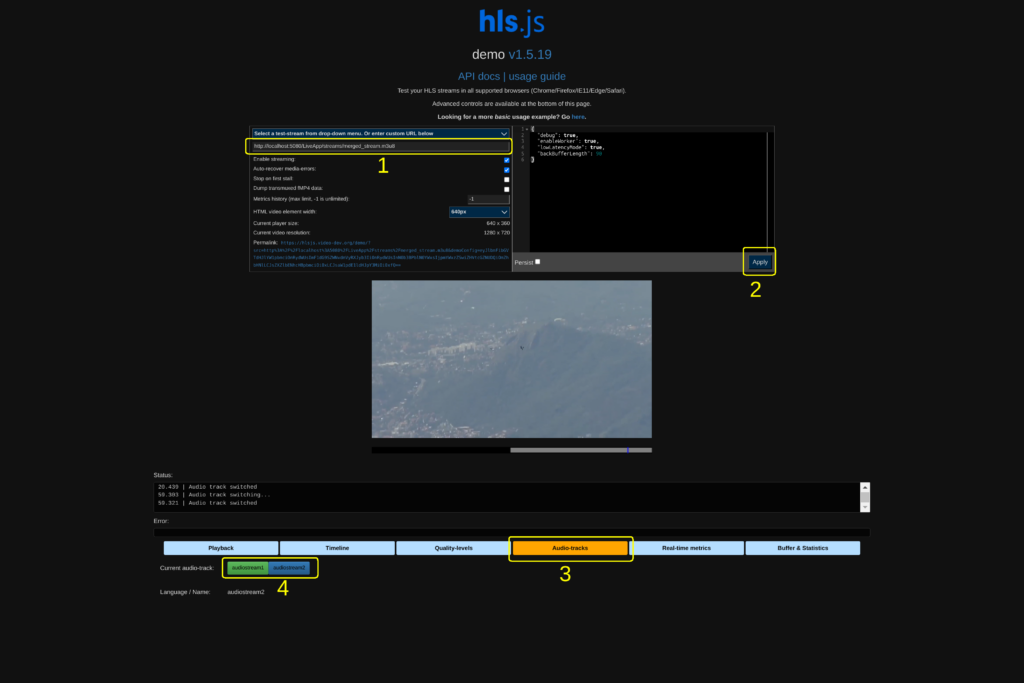
Use a compatible HLS player to play the resultant m3u8 file URL in step 2. For example in hls.js:
- Copy the master file URL into URL field as in the image.
- Click “Apply” button. Player should start to play your stream.
- Click “Audio-tracks” button. You should see available audio tracks below the player.
- Choose any audio track to listen.
- Step 6: To delete this merged stream, call:
curl -X DELETE -H "Accept: Application/json" -H "Content-Type: application/json" http://localhost:5080/LiveApp/rest/v1/hls-merger/multi-audio-stream/merged_streamFrequently Asked Questions
What is an HLS plugin?
An HLS plugin is a server-side or browser-side extension that adds capabilities to HTTP Live Streaming beyond the base protocol. In Ant Media Server, HLS plugins include the HLSMerger Plugin for combining multiple streams into one HLS master playlist, and the Low Latency HLS plugin for reducing delivery latency to approximately 3 seconds. On the player side, hls.js is a widely used browser HLS plugin that enables M3U8 playback in browsers without native HLS support.
What are HLS multiple audio tracks and how do players switch between them?
HLS multiple audio tracks are separate audio renditions declared inside a master M3U8 playlist using #EXT-X-MEDIA TYPE=AUDIO tags. Each rendition points to its own sub-playlist of audio-only segments. Players like hls.js, Safari, and ExoPlayer read these tags and present a track selection UI. When a viewer selects a track, the player switches its audio buffer to that sub-playlist while keeping the video timeline unchanged. This is the standard mechanism for multilingual live streaming.
How do you merge M3U8 files from multiple streams into one?
Publish each stream to the same Ant Media Server application via RTMP, then call the HLSMerger REST endpoint with the stream IDs. For resolutions: POST /LiveApp/rest/v1/hls-merger/multi-resolution-stream/{masterName} with a JSON array of stream IDs as the request body. The plugin writes a master M3U8 at /streams/{masterName}.m3u8 referencing all submitted stream sub-playlists using standard #EXT-X-STREAM-INF entries.
Can you programmatically merge a voiceover or separate audio track with an existing HLS video?
Yes. Publish the video-only stream and each audio-only stream as separate RTMP inputs, then call: POST /LiveApp/rest/v1/hls-merger/{videoStreamId}/multi-audio-stream/{masterName} with the audio stream ID array as the JSON body. The plugin writes a master M3U8 that binds them using the #EXT-X-MEDIA audio group mechanism. No manual M3U8 editing or FFmpeg post-processing is required. Set the Segment Duration to 10 seconds in LiveApp settings before publishing to ensure audio sync.
What is the difference between the HLSMerger Plugin and Adaptive Bitrate transcoding?
The HLSMerger Plugin combines pre-encoded streams into a single master M3U8 without any server-side re-encoding — ideal when the encoder already produces multiple bitrates. Adaptive Bitrate transcoding generates multiple quality tiers from a single ingest stream on the server, consuming CPU or GPU resources. For a detailed breakdown of server-side encoding options, see the GPU vs CPU transcoding guide.
What segment duration should you use for multi-audio HLS merging?
All contributing audio and video streams must use the same segment duration for track synchronization. Set the Segment Duration to 10 seconds in the Ant Media Server LiveApp Application Settings before publishing any streams. Mismatched segment durations between video-only and audio-only streams cause progressive audio drift that cannot be corrected without re-publishing.
Does the HLSMerger Plugin work with Low Latency HLS?
The HLSMerger Plugin operates at the M3U8 manifest layer and works with both standard HLS and LL-HLS streams. The merged master playlist correctly references LL-HLS sub-playlists that include #EXT-X-PART tags, and compliant players process them normally, provided the Ant Media Server application has LL-HLS enabled.
Conclusion
In this blog post, we introduced the HLSMerger Plugin, a powerful tool for enhancing the HLS streaming experience. By enabling the creation of HLS streams with multiple resolutions and audio tracks, this plugin provides flexibility and efficiency for diverse streaming scenarios. Whether you aim to eliminate server-side transcoding overhead or deliver multilingual content inside a single M3U8 URL, the HLSMerger Plugin covers both workflows through a clean REST API.
To test HLS stream merging, multi-resolution delivery, and LL-HLS playback in a full Ant Media Server environment, start a 14-day free trial — no credit card required.