A push notification is a message that pops up on a user’s device to provide timely and relevant information. Unlike emails or SMS, push notifications are delivered directly to the user’s device through the app, even if it’s not open, ensuring immediate engagement. They can include text, images, or clickable links, allowing businesses and applications to communicate directly with users in real-time, improving user retention and engagement by keeping users informed about updates, alerts, and other relevant information.
Push notifications have become an essential feature for modern web and mobile applications, especially for real-time platforms like Ant Media Server. They help to keep users informed and engaged, whether it’s about live stream updates, conference events, or important alerts related to the platform. In this blog post, we’ll walk you through a simple implementation of push notifications for Ant Media Server using the Firebase Cloud Messaging (FCM).
Table of Contents
Why Push Notifications for Ant Media Server?
Ant Media Server is renowned for its powerful WebRTC video streaming and RTMP streaming capabilities, and push notifications serve as an effective auxiliary tool to keep viewers informed in real time. These notifications can alert users about the following:
- Status changes for stream recordings.
- Live stream events (e.g., when a stream goes live).
- Upcoming conference schedules.
- Alerts on network issues or server outages.
Prerequisites
To follow this tutorial, you’ll need:
You can find the complete implementation and code samples in this GitHub repository.
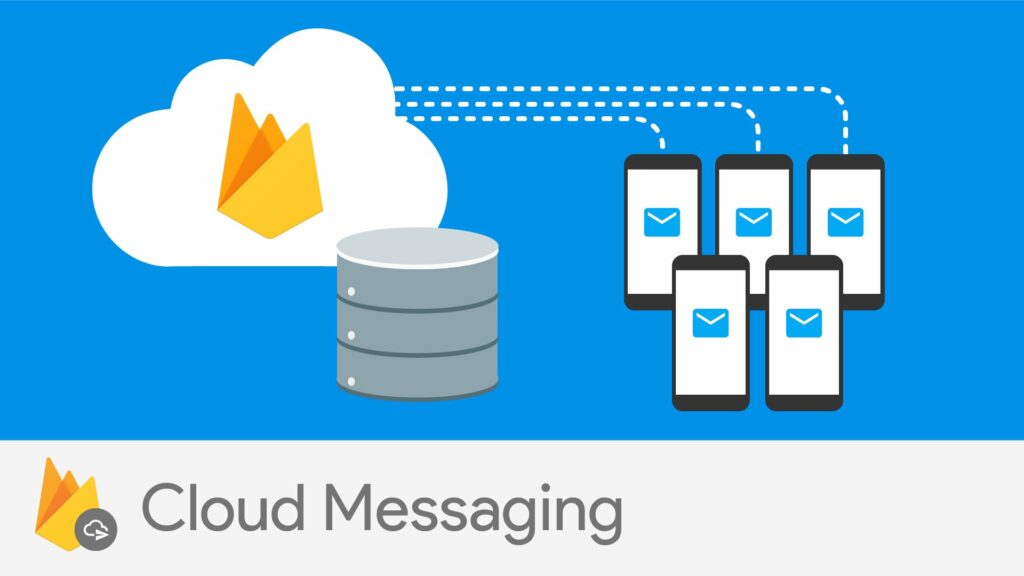
Step 1: Setting Up Firebase Project
Before integrating Firebase Cloud Messaging (FCM) into your Android app, you need to set up a Firebase project:
Create a Firebase Project:
- Go to the Firebase Console.
- Follow the setup wizard to create a new Firebase project.
- Once created, download the
google-services.jsonfile and update it in the Android project which locates underappdirectory. - Add Cloud Messaging to your project via Firebase Console.
Step 2: Overview Project Codes
Ant Media Firebase Messaging Service
AntMediaFirebaseMessagingService handle incoming messages and registration token updates using FirebaseMessagingService.
Create Accept Call Receiver
The AcceptCallReceiver class extends BroadcastReceiver and is responsible for handling the user’s action when they accept an incoming call from the notification. When the “Accept” button is tapped on the notification, this receiver is triggered to manage the acceptance of the call and transition the user to the appropriate in-call activity.
Source code of AcceptCallReceiver.
Decline Call Receiver
The DeclineCallReceiver class extends BroadcastReceiver and is responsible for managing the user’s action when they choose to decline an incoming call from the notification. This class listens for the broadcast triggered by the “Decline” button in the notification and performs the necessary operations to handle the declined call.
Source code of DeclineCallReceiver
Notification Helper
The NotificationHelper class is a utility designed to display and manage incoming call notifications in a WebRTC-based application. It leverages the Android Notification API to create a highly interactive and user-friendly call notification with actions like accepting or declining the call.
Source code of NotificationHelper
Call Notification Activity
The CallNotificationActivity class demonstrates how to integrate WebRTC functionality with push notifications using Firebase Cloud Messaging (FCM). It manages WebRTC calls while ensuring that both the caller and receiver are notified about call events through push notifications. The use of permissions for Android Tiramisu (API level 33) ensures compatibility with newer Android versions, making the application ready for broader device support.
Source code of CallNotificationActivity
Peer For Notification Activity
The PeerForNotificationActivity class handles both video streaming and peer-to-peer communication via WebRTC. It also demonstrates how to manage real-time notifications using data channels, providing a complete solution for WebRTC applications with user interaction.
Source code of PeerForNotificationActivity
Step 3: Configure Ant Media Server
To obtain the FCM private key JSON file, follow these steps:
- Go to the Firebase Console: Visit Firebase Console and log in with your Google account.
- Create or Select a Project: Choose your existing project or create a new one for your app.
- Navigate to Project Settings: In the project dashboard, click on the gear icon next to “Project Overview” and select “Project settings.”
- Generate a Private Key:
- Under the “Service accounts” tab, select “Generate new private key.”
- Confirm the creation and a JSON file containing your private key will be downloaded to your device.
After obtaining the JSON private key file, save it to your Ant Media Server:
- Open the Management Panel: Log in to the Ant Media Server management console.
- Select an Application: Choose the application where you want to enable push notifications.
- Access Application-Level Settings: Go to the “Push Notification” section under application settings.
- Upload the JSON: Upload the JSON private key file in this section to enable push notifications via FCM.
To obtain the APN private key for iOS push notifications, follow these steps:
- Log in to the Apple Developer Portal: Visit Apple Developer and sign in with your Apple ID.
- Go to Certificates, Identifiers & Profiles: Navigate to “Certificates, Identifiers & Profiles” from the dashboard.
- Select Keys: In the left sidebar, select “Keys,” then click on the plus icon (
+) to create a new key. - Create a New Key for Push Notifications:
- Enter a name for the key, then enable “Apple Push Notifications service (APNs).”
- Click “Continue” and then “Register” to create the key.
- Download the Private Key: Once the key is created, download the
.p8file containing the APNs private key and keep note of the Key ID shown. You will also need your Team ID, which is found in the “Membership” section of the Apple Developer portal.
After obtaining the .p8 private key file for APNs, save it to your Ant Media Server:
- Open the Management Panel: Log in to the Ant Media Server management console.
- Select an Application: Choose the application where you want to enable push notifications.
- Access Application-Level Settings: Go to the “Push Notification” section under application settings.
- Upload the
.p8File: In the APNs section, upload the.p8file and provide the Key ID, Team ID, and Bundle ID of your iOS app to enable push notifications via APNs.
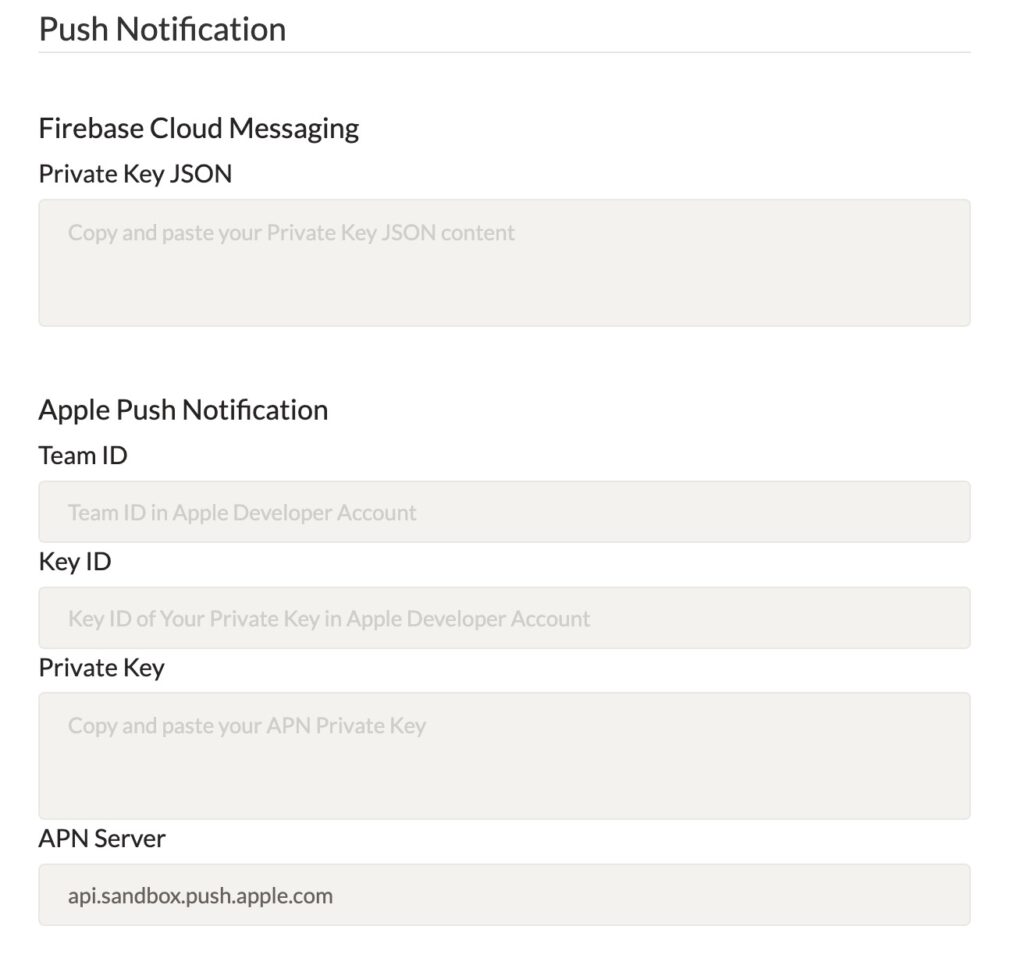
To protect the send push notification WebSocket message, you need to generate two subscriber authentication tokens with the sender’s Subscriber ID and the receiver’s Subscriber ID. You can call the getSubscriberAuthenticationToken Rest API endpoint.
curl -X 'GET' 'https://your-antmedia-server-address:5080/WebRTCAppEE/rest/v2/push-notification/subscriber-auth-token?subscriberId=<your-subscriber-id>'
We will call the sender’s token as authToken in the rest of the documentation. We will call the sender’s Subscriber ID as subscriberId and we will call the receiver’s Subscriber ID as sendNotificationToSubscriber.
Step 4: Sending Notifications to Web and Mobile Clients
We are ready to send push notifications. You can send your push notifications through the Ant Media Server in a secure way. All you need to do is call the sendPushNotification function. You can use the HTML page below to be able to send push notification:
<!DOCTYPE html>
<html>
<head>
<meta charset="UTF-8">
<title>Insert title here</title>
</head>
<body>
<script type="module">

import { WebRTCAdaptor } from "./js/webrtc_adaptor.js"

//Define the subscriberId and it can be any subscriber Id
var subscriberId = "";
var sendNotificationToSubscriber = "";

//Get auth token for Ant Media Server to authenticate the user.
//it's JWT token generated with Subscription Authentication Key(subscriptionAuthenticationKey) in Application settings with subscriberId claim  and it's value.
//PushNotificationRestService can also be used to generate the authToken
var authToken = "";

//this is the token get from FCM or APN
var pushNotificationToken = "";

var pushNotificationService = "apn"; //fcm or apn

//Register push notification token to Ant Media Server. It makes the user receive push notification.
function registerPushNotificationToken() {
  webRTCAdaptor.registerPushNotificationToken(subscriberId, authToken, pushNotificationToken, pushNotificationService);
}

//Send push notification to the subscriber
function sendPushNotification(sendNotificationToSubscriber) {
  console.log("send push notification --");
  webRTCAdaptor.sendPushNotification(subscriberId, authToken, {"title":"This is a test message", "apn-topic":"io.antmedia.ios.webrtc.sample"}, [sendNotificationToSubscriber]);
}

var webRTCAdaptor = new WebRTCAdaptor({
    websocket_url: "ws://localhost:5080/WebRTCAppEE/websocket",
    isPlayMode: true,
    callback : function(info, obj) {
        console.log("info:", info, "obj:", obj);
        if (info === "initialized") {
            registerPushNotificationToken();

            setTimeout(function()
			{
                sendPushNotification(sendNotificationToSubscriber);
            }, 2000);
        } else if (info === "play_started") {
        } else if (info === "play_finished") {
        }
    },
});
</script>
</body>
</html>
Related Integrations and Use Cases
Push notifications pair effectively with other real-time communication features in Ant Media Server. When building mobile applications that require bidirectional signaling alongside notification delivery, Android WebRTC SDK integration provides the underlying peer-to-peer communication layer that the FCM notification triggers can activate. For teams building on Flutter, the Flutter WebRTC SDK provides equivalent cross-platform stream publishing and playback capabilities alongside the push notification workflow described above.
Securing the subscriber authentication token generation used in this tutorial requires a properly configured REST API layer. The REST API guide covers authentication patterns, endpoint structure, and JWT token configuration that directly support the getSubscriberAuthenticationToken endpoint used in Step 3. For stream-level access control beyond subscriber tokens, JWT stream security filter configuration provides the next layer of protection for production deployments.
Push notifications for conference events — one of the primary use cases described above — integrate directly with Ant Media Server’s conference call architecture. The conference solution setup guide covers the room management and participant signaling that push notifications can extend for offline user alerting. Teams deploying WebRTC peer-to-peer use cases alongside notifications can also reference WebRTC peer-to-peer communication for the underlying connection establishment the notification handshake triggers.
Frequently Asked Questions
What is a push notification in Ant Media Server?
A push notification in Ant Media Server is a real-time alert delivered to a user’s Android or iOS device via Firebase Cloud Messaging (FCM) or Apple Push Notification service (APNs), triggered by server-side events such as stream start, conference schedule, or recording status changes — without requiring the app to be open.
Does Ant Media Server support both FCM and APNs push notifications?
Ant Media Server supports both Firebase Cloud Messaging (FCM) for Android and Apple Push Notification service (APNs) for iOS. Each requires a separate private key file — a JSON file for FCM and a .p8 file for APNs — uploaded through the Push Notification section of the application settings in the management console.
How is the push notification subscriber token generated?
The subscriber authentication token is generated by calling the getSubscriberAuthenticationToken REST API endpoint with the subscriber’s ID. The endpoint returns a JWT token signed with the application’s subscriptionAuthenticationKey, which is then passed as authToken in the sendPushNotification WebSocket function call.
What events can trigger push notifications in Ant Media Server?
Push notifications in Ant Media Server can be triggered by stream recording status changes, live stream start events, conference call schedules, and network or server alerts. Custom notification payloads with title and apn-topic fields allow developers to define any application-specific event trigger through the sendPushNotification function.
What Android API level is required for push notification compatibility?
The CallNotificationActivity implementation includes permission handling for Android Tiramisu (API level 33) and above. This ensures compatibility with newer Android versions. Devices below API level 33 do not require explicit notification permission grants, making the implementation backward-compatible across the supported Android SDK range.
Can push notifications be sent through the WebRTC data channel in Ant Media Server?
PeerForNotificationActivity uses WebRTC data channels to manage real-time notification events alongside the video stream. This approach delivers in-session alerts — such as peer join/leave signals — directly through the WebRTC connection, complementing FCM/APNs notifications that reach offline or background users.
Conclusion
Integrating push notifications into Ant Media Server enhances the overall experience by keeping users informed about real-time events. With tools like Firebase Cloud Messaging, the implementation becomes straightforward across platforms. Whether it’s live stream updates or conference alerts, push notifications can significantly improve user engagement on your Ant Media Server-backed platform.
The four-step implementation above — Firebase project setup, Android SDK code integration, Ant Media Server configuration with FCM and APNs keys, and WebSocket-based notification dispatch — covers the complete notification pipeline from server event to device screen. Developers building real-time streaming applications that require offline user alerting can validate the full notification flow, including subscriber token generation and WebRTC notification testing, within a 14-day self-hosted trial environment without any production risk.
If you have questions or need any support, contact us via a form, schedule a meeting to have a coffee and chat, or write directly to [email protected] so that we can democratize live streaming together.